Computation Settings are not the focus of this Quickstart. More information is available in the main How-to Dredging here.
The following is a brief reference to the most important settings for dredging.
For a more detailed explanation of computations please refer to:
-
Help pages, in particular the Computation Setup pages.
-
How-to Computation in the Knowledge Base, in particular How-to Computation Setup.
Take the following steps in order to check the most common settings in the computation.

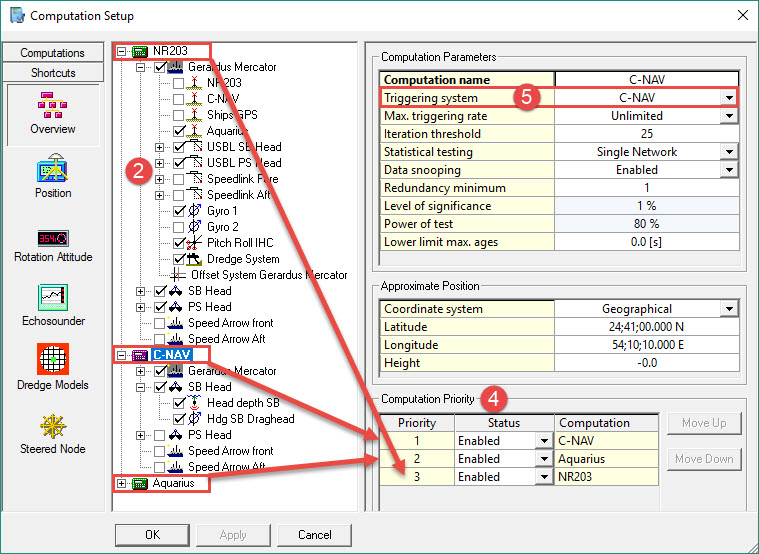
It is recommended to create a computation for each available positioning system.
If the primary computation fails for some reason, e.g. a crash of the positioning system, the secondary computation is automatically promoted.

Positioning systems defined in the template database are detected and a computation made for each one.
This is illustrated in the image below, i.e. NR203, C-NAV and Aquarius.

Not applicable to backhoe dredging.


When accurate height is selected the heights from the GPS receiver are used, overruling all height related components such as Tide and Draft.
In most cases set the height to unreliable; Tide and Draft observations are then used in order to calculate the correct height.
These settings will not affect the height of the dredge head.
Note
Please refer to Height Aiding for an explanation of how the Height computation works.


To change the model, click on Import. See How-to Dredgehead Models.


This node is used to compute 'along line' (dAlong) and 'across line' (dAcross) distances.
Select one node on each object to use as a Steered Node. Prioritize the objects to select the active Steered Node.
In some cases dAlong and dAcross distances are referenced to the Spud CoG.

These settings are the same for all computations. In case multiple heave observations are available, a priority must be set.
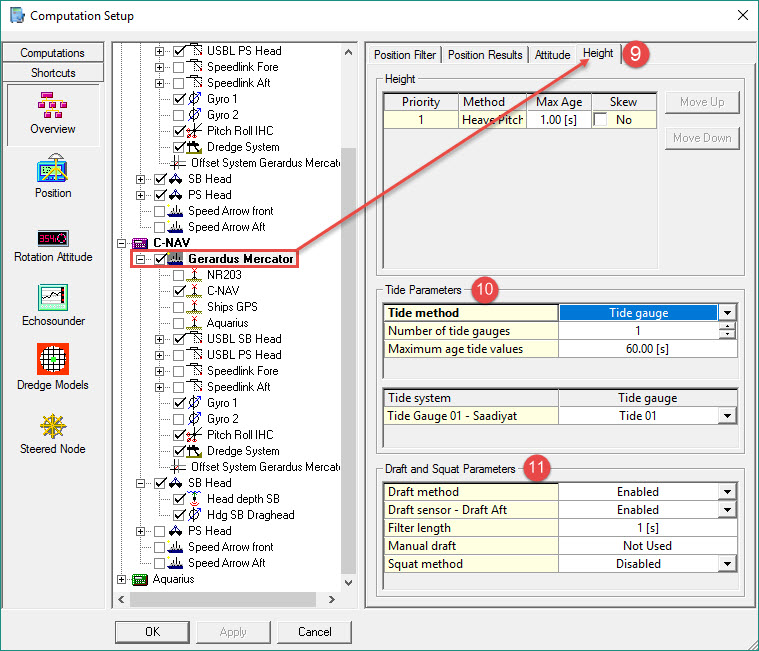


Draft observations are filtered using a median filter, which takes the statistical median over all observations in the filter time period. You can modify the way the draft is calculated by changing the Draft settings. If all Sensors are set to Disabled then the Manual Draft value will be used. If at least one sensor is enabled then the manual value is not used but instead the sensor(s) will be used.

If the dredge tool is positioned three dimensionally by the Pseudo-USBL, enable the use of the Z Observation. If there is a depth sensor providing dredge tool depth, deselect the Z Observation from the Pseudo-USBL observation.


A single Draft value valid for the CoG is calculated per object. Every QINSy heartbeat update (0.25 seconds) a new Draft value is calculated.
Proceed to: BHD - Session Setup.
Return to: top of page.
Return to: QS BHD - Online.
Return to: Quickstart - BHD.