This information is valid for Qinsy releases as of May 2013.
Older QINSy versions will have more limited raw data recording.
This document describes the flow of raw data in Qinsy.
On this page:
Abstract
With raw data we mean the raw original packets as received from the sensor, for example a multibeam echosounder water column data packet.
For "non-raw" data the driver will decode the received data and store the decoded fields in a Qinsy proprietary data container. The original data packet is discarded. In a way the content could still be considered raw but it is not maintained in the original packet.
This means that certain meta data that was in the original packet will be lost because only a subset of essential data fields are decoded.
But for export of data to 3rd party software or for advanced non-bathymetry processing (e.g. Fledermaus FMGT, backscatter processing) it is often essential that the raw packets are available with all their system specific meta data.
In the past the storage of raw data was only used for XTF export purposes but now it can be used for various tasks* within Qinsy or Fledermaus:
-
Qinsy
-
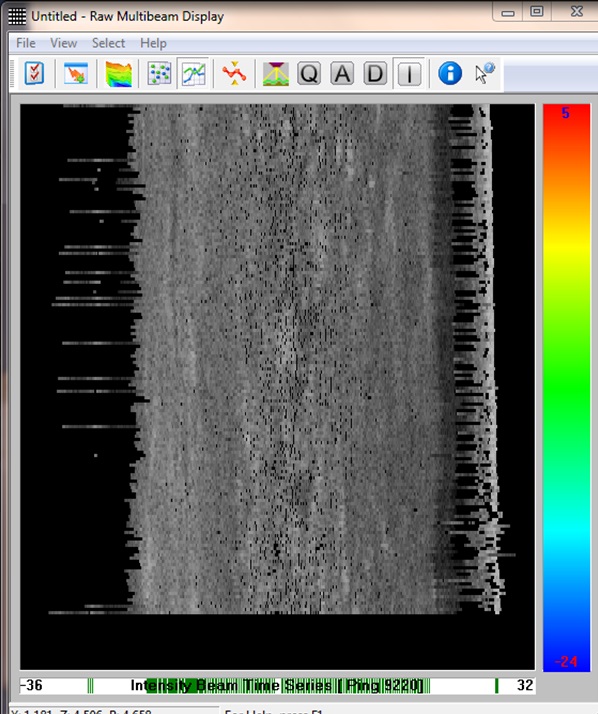
Display Water column data and snippet data in the Raw Multibeam Display (Raw Water column/Snippets packets)
-
Online/Replay filling of sounding grid layer with snippet data (Raw Snippets Packets)
-
Export to XTF and GSF
-
-
Fledermaus
-
Geocoder processing (FMGT)
-
Water Column target detection (FM Midwater)
-
Raw data can currently only be recorded for Multibeam and Sidescan system types. The following observations are currently stored as raw data:
-
Multibeam Echosounder
-
Bathymetry
-
Although the multibeam bathymetry raw (original) data packet is stored in the database, the decoded raw multibeam data is also stored, so this will obviously increase the size of the created databases
-
-
Intensity Beam time Series (Snippets/seabed Imagery)
-
Water Column
-
-
Sidescan Sonar Data (e.g. Truepix)
-
Database will contain raw original packets AND decoded sidescan data.
-
*) Not all packets are supported yet for every task mentioned here, e.g. GSF exports currently only bathymetry results and SNP0/1 packets.
Setup
Raw data storage should be activated in Database Setup.
In previous versions the drivers that supported raw data recording had the suffix XTF in their driver descriptions. This is no longer the case.
The enabling of raw data recording is still done in Database Setup and needs to be defined in the "Driver Specific Parameters" page.
This page will be shown as the second page of the DbSetup Multibeam or Sidescan system wizard pages.
The storage of raw data is not available for every multibeam/sidescan system type/brand.
Currently this is only possible for the following multibeam systems:
-
Reson
-
Kongsberg
-
R2Sonic
For other system types the raw data recording may be added in the future. For an overview of which system supports raw data refer to the "Drivers" section below.
Note that the storage of Raw Bathymetry and Intensity Beam Time Series (snippets/seabed imagery) is enabled in Database Setup.
For water column data only the decoding is activated in Database Setup.
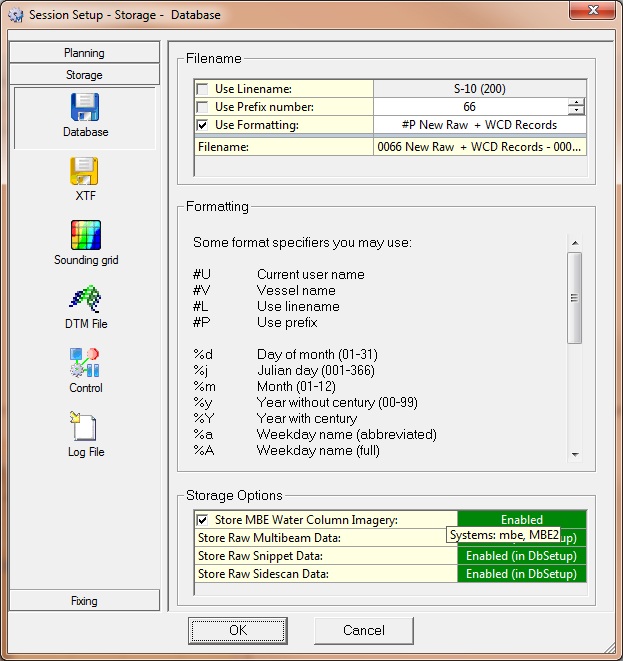
Online you may decide whether to store Water Column or not under Session Setup - Storage - Database.
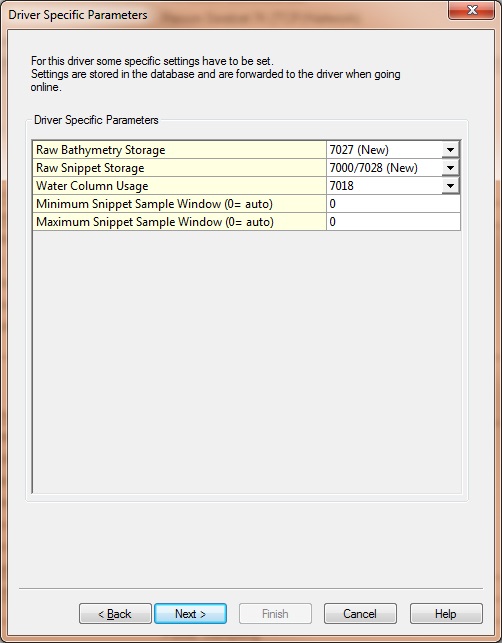
It is possible to activate raw storage of Snippets/Seabed Imagery and Bathymetry independently.
For Fledermaus FMGT processing BOTH should be activated.
Drivers
The following driver entries support the decoding of raw data packets.
Note that in order to activate raw storage the driver specific settings should be set correctly in Database Setup.
Per system the data type that can be recorded in the database is shown:
|
Manufacturer |
Driver Nr |
Description |
Executable |
Bathymetry Packet Types |
|
|---|---|---|---|---|---|
|
Reson |
200004 |
Reson Seabat 81xx/900x |
DrvSeabatSerial.exe |
|
0x14-0x18 |
|
|
200006 |
Reson Seabat 81xx/900x (Network) |
DrvSeabatSocket.exe |

|
0x14-0x18 |
|
|
200008 |
Reson Seabat 7K (UDP/Network) DEPRECIATED |
DrvSeabat7KUDP.exe |
|
7004/7006 |
|
|
200057 |
Reson Seabat 7K (TCP/Network) |
DrvSeabat7K.exe |
|
7004/7006 or 7027 (user selectable) |
|
Kongsberg / Simrad |
200070 |
Simrad EM3002 (R-Theta Format) |
DrvSimradEM3000.exe 0 |
|
f (Raw Range Angle)
|
|
|
200072 |
Simrad EM3002D Head II (R-Theta Format) |
DrvSimradEM3000.exe 0 DII RAW |
|
f (Raw Range Angle)
|
|
|
200076 |
Kongsberg EM2040/EM710/EM302/EM122 |
DrvKongsbergEM.exe |
|
N (New Raw Range Angle)
|
|
|
200077 |
Kongsberg EM2040 Head II |
DrvKongsbergEM.exe |
|
N (New Raw Range Angle)
|
|
Odom |
200015 |
Odom Echoscan XTF |
DrvOdomEchoScan.exe |
|
0x10 |
|
R2Sonic |
200055 |
R2Sonic 2000 Series (Network) |
DrvR2Sonic.exe |
|
BTH0 |
|
(Sidescan) |
270055 |
R2Sonic 2000 series (Network) Truepix |
DrvR2Sonic.exe |
|
|
|
Manufacturer |
Meta Data Packet Types |
Snippet/Seabed Image Packet Types |
Water Column Packet Types |
|||
|---|---|---|---|---|---|---|
|
Reson |
|
|
|
|
|
|
|
|
|
|
|
SNP0/SNP1 |
|
|
|
|
|
7000 (Ping Header) |
|
7008 |
|
|
|
|
|
7000 (Ping Header) |
|
7008 or 7028 (user selectable) |
|
7018 |
|
Kongsberg / Simrad |
|
R (Runtime Settings) |
|
S (Seabed Image) |
|
k |
|
|
|
R (Runtime Settings) |
|
S (Seabed Image) |
|
k |
|
|
|
R (Runtime Settings) |
|
Y (New Seabed Image) |
|
k |
|
|
|
R (Runtime Settings) |
|
Y (New Seabed Image) |
|
k |
|
Odom |
|
|
|
|
|
|
|
R2Sonic |
|
|
|
SNI0 (Snippets) |
|
WCD0 |
|
(Sidescan) |
|
|
|
TPX0 (truepix) |
|
|
Offline / Replay / Database Manager
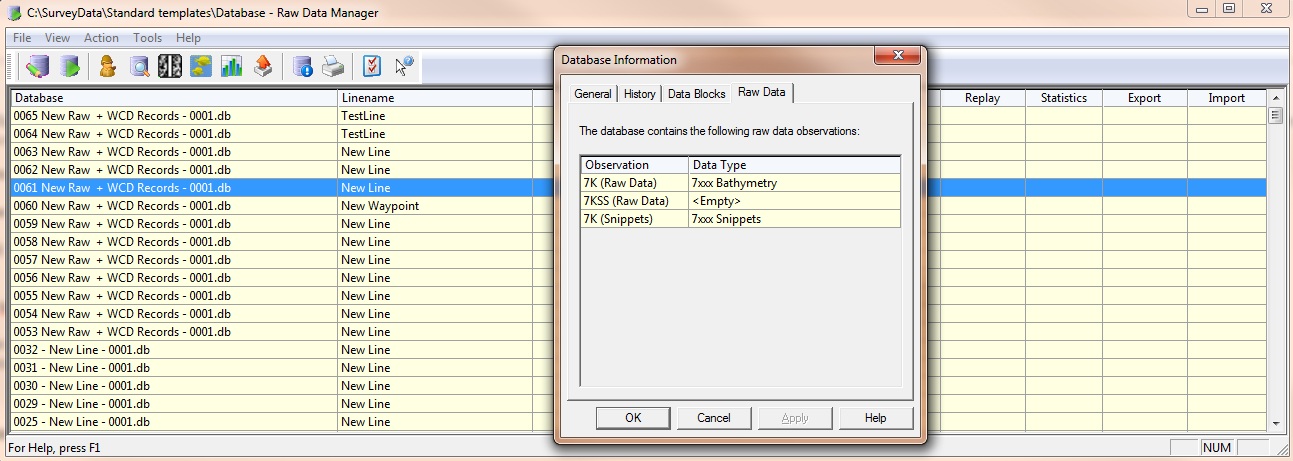
If you select the Database Properties a new tab is introduced that shows the Raw Data streams in the database.
This is currently the only way for a user to see if the DB contains raw data, assuming the user does not have the Db Inspector tool.
Online Controller
The older "XTF" drivers are depreciated, this means you can no longer go online with them.
The database should be changed somewhat, the appropriate driver should be re-chosen and the raw packet storage should be enabled/disabled.
In the Controller on the Database page of the Session Setup the user can see for which system raw data is recorded.
The storage of Water Column data can be activated by the user but the raw Snippet and multibeam data storage are enabled in Database Setup.
Storing all the raw data online will put a great strain on the hard disk especially when water column data is enabled. On older computers the hard disk may not even keep up with the amount of data offered to it.
This can lead to excessive buffering in the so-called DbOut driver that writes the database, which will eventually lead to a warning message in the Controller and a forced stop of the recording.
If in doubt on the hard disk performance, check the DrvDbout.exe process in the MSWindows Task Manager and check that it is not using too much memory. Typical memory usage should be around 30-100 MB.
If it is increased way beyond 100s of Mega bytes and is continuously increasing, it is possible that the hard disk can not keep up. Stop recording and see if the amount of memory usage drops again.
As a temporary work around you can stop using the sounding grid, or make the sounding grid cell size larger or even stop the logging of the QPD file.
Observation Physics Display
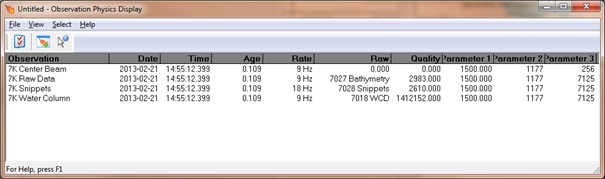
This display is the primary place to check in Qinsy whether data is properly arriving in Qinsy.
For a multibeam or sidescan system that has raw data storage options enabled you can see in this display which packet types are being decoded.
Note that the different multibeam "observations" should be selected in the selection dialog.
For Raw packets the column "Raw" will show the type of packet and the Quality column will show the size of the packet in bytes.
The image below shows a screen capture of the New Reson Seabat 7125 messages 7027 and 7028:
Raw Multibeam Display
The Raw Multibeam Display can show the various raw data types that a multibeam system can deliver.
It can show decoded:
-
Bathymetry data,
-
Intensity Beam Average (A button)
-
Intensity Beam Time Series (snippets/seabed imagery) (I button),
Note that this is not yet supported for every system type.