
📋 Content
COG = HDG behaviour
Before this version, if no HDG input was available, COG would be used as the vessel's HDG. The default setting now is that, if all HDG input is lost, the vessel symbol will change to show only the antenna position as a circle, with no regular vessel outline. If the normal vessel outline is still required, you can use a new extra setting in the Positioning Device settings called “Allow COG As Heading Fallback”. This will still display the regular vessel outline but with a red outline around the vessel shape, emphasizing there is no HDG input and COG = HDG.
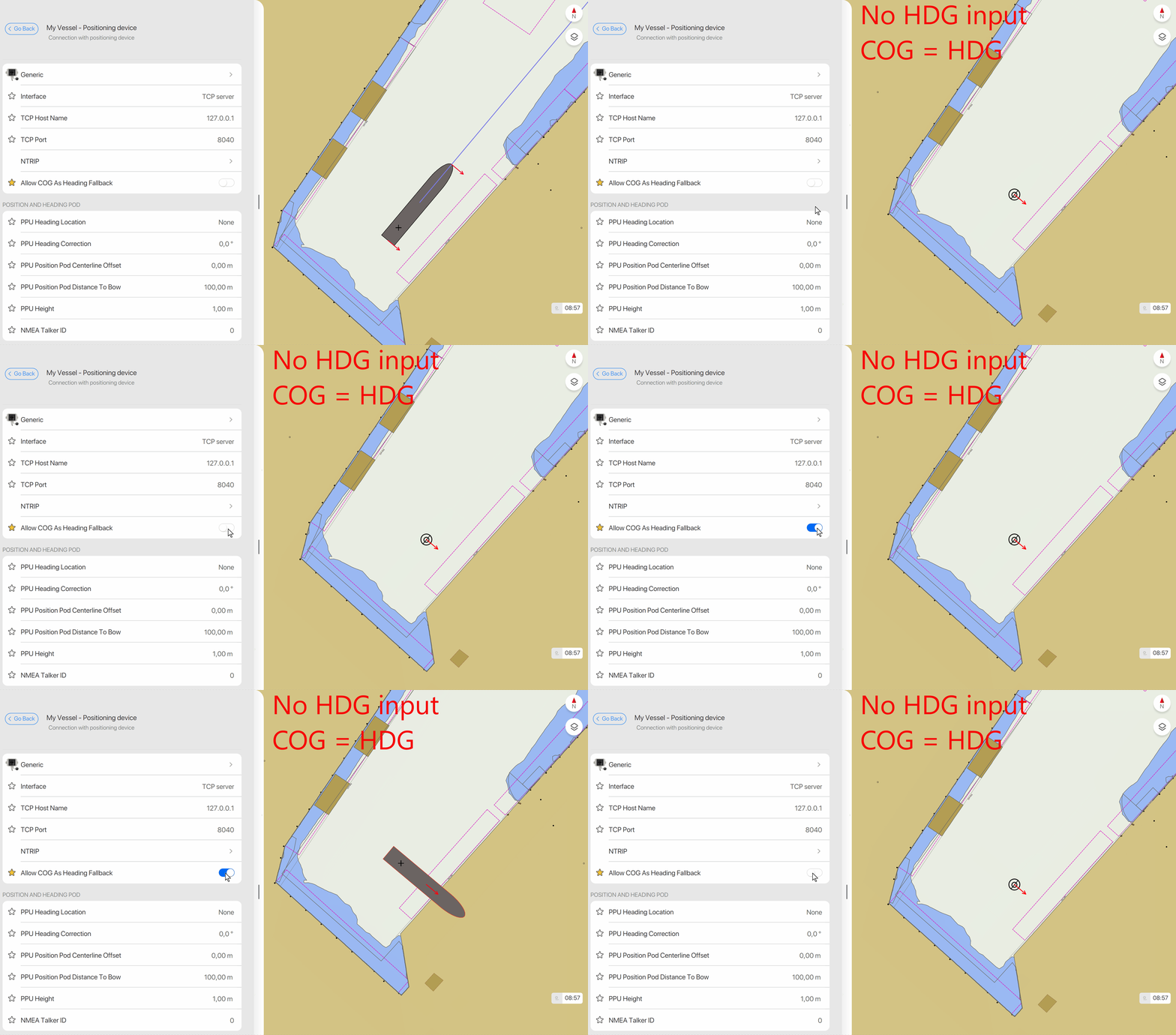
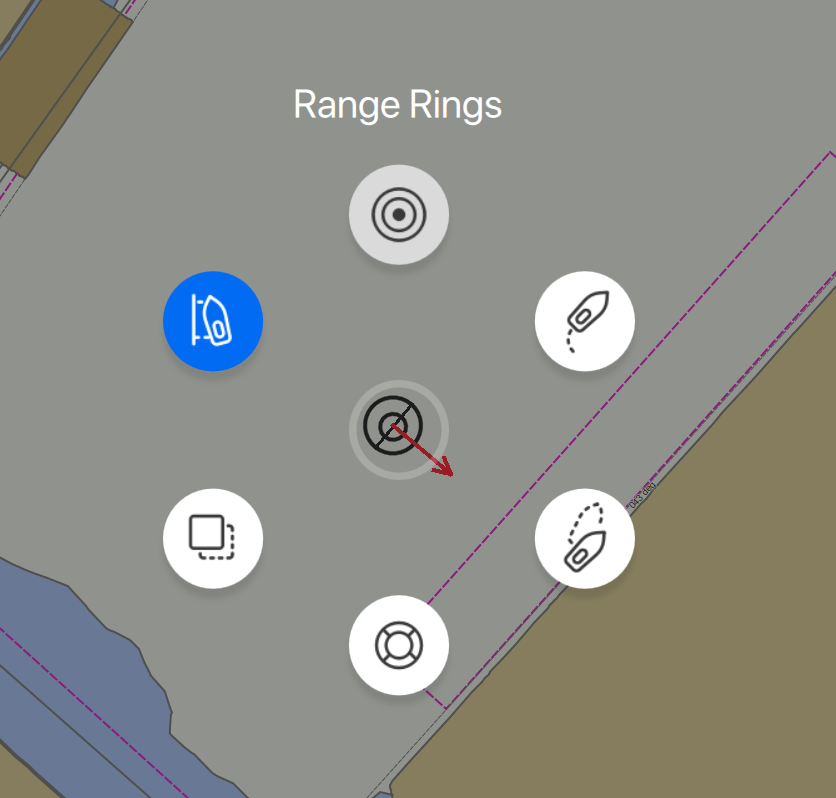
Only a single speed vector will be used when no vessel outline is depicted. From the ships radial menu you can still use and see the range rings, past track and MOB. Other settings like Prediction, Copy AIS Values, and Docking Distances remain active but aren't displayed without a regular vessel shape.
Be aware that an iOS device could have an internal HDG sensor selected, which will be used in this order of priority:
-
NMEA heading input
-
AIS
-
Internal HDG sensor (iOS devices and when enabled in Qastor)
-
COG = HDG
GGA speed calculation was not working
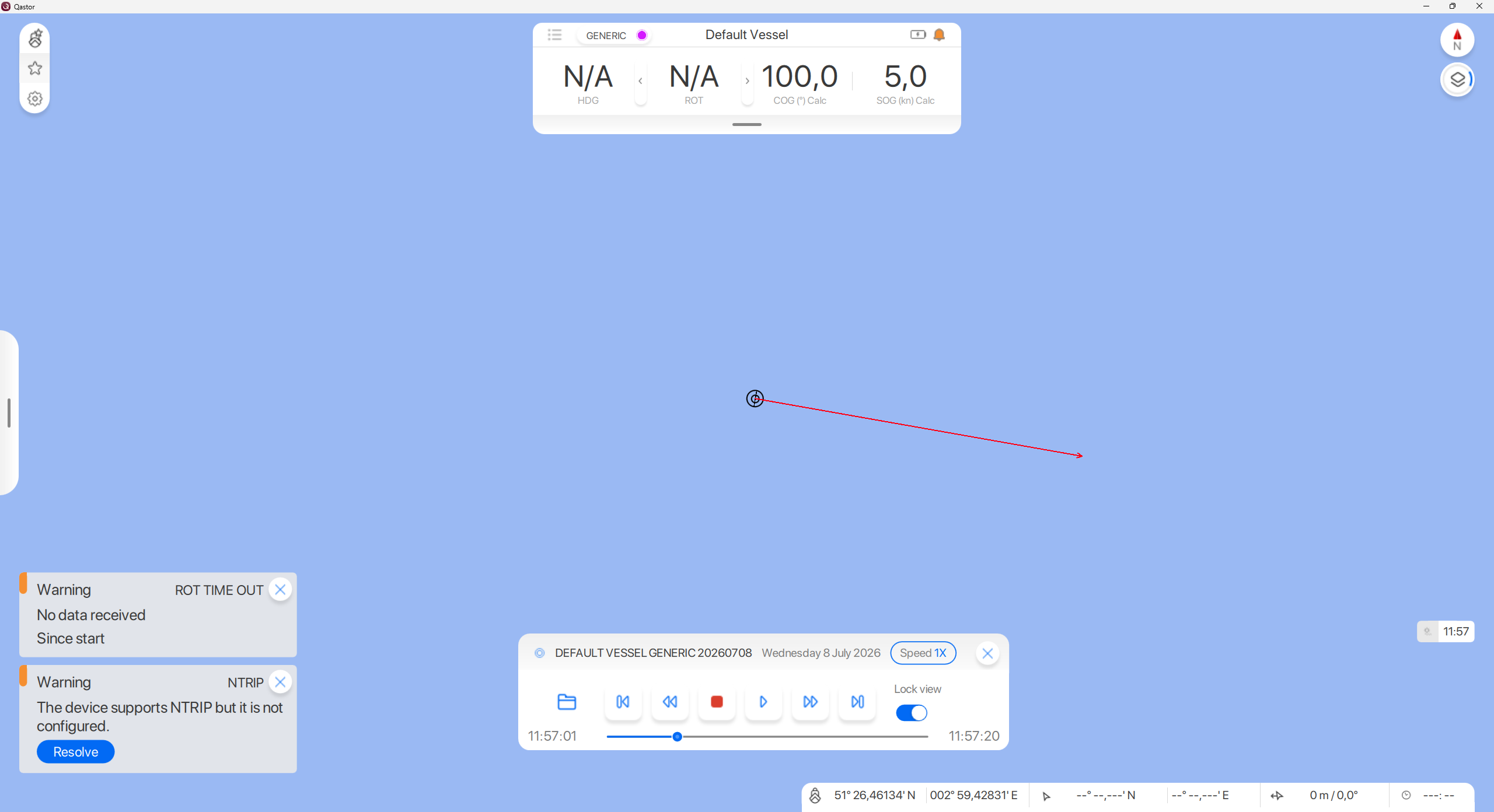
Fixed an issue where heading and speed over ground (SOG) were not calculated correctly for My Vessel when GGA was the only position input. Qastor 3.22.2 now correctly derives and displays heading and SOG in this configuration.
Fix Navicom Dynamics Channel Pilot MMSI acknowledgement
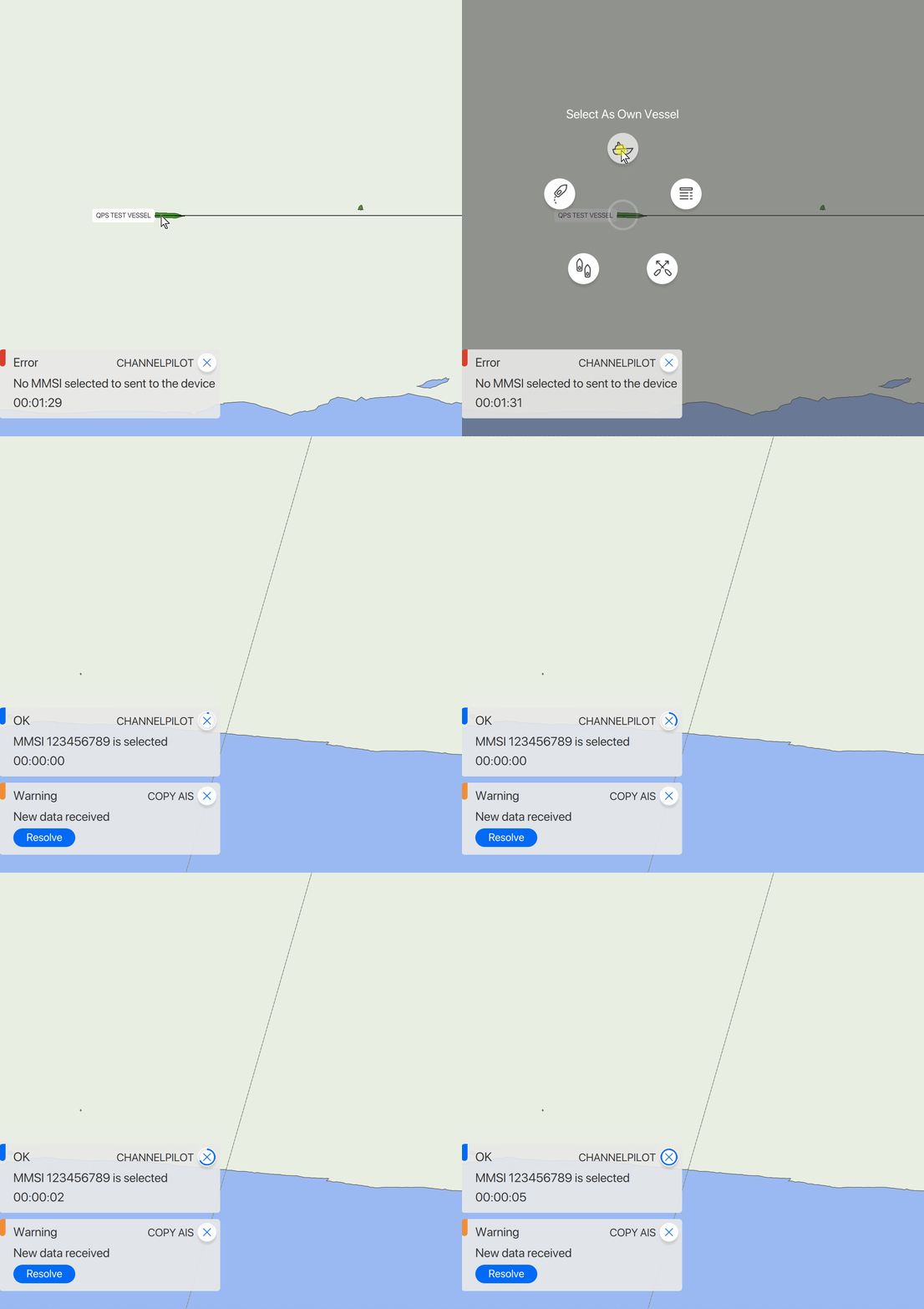
The MMSI selection message was sent only once, not repeatedly every 5 seconds.
This could cause the Channel Pilot not to receive it, and no confirmation message would be sent back to Qastor, preventing selection of the intended vessel.
This is now solved in this Qastor release.
Fix S-102 charts loading at startup
Loading S-102 bathymetry charts at Qastor startup could cause Qastor to crash on iOS devices. This has been fixed in this Qastor release
Asymmetrical Cross Track Distance (XTD)
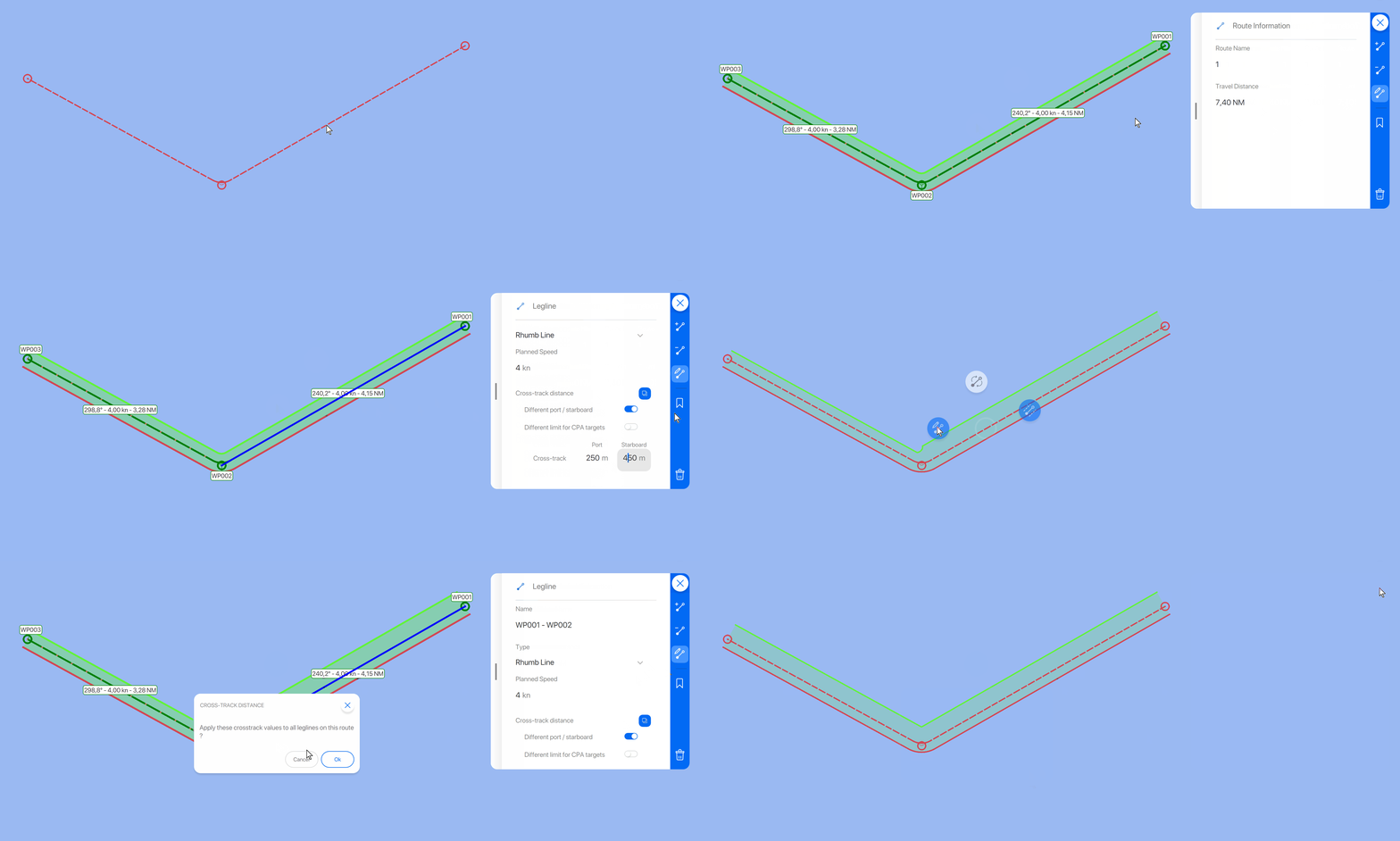
You can now set a different XTD for the port or starboard side of a leg line in a route. You can do this per leg line, or use “copy to all” to apply it to all leg lines in a route. If “copy to all” is used a warning popup will display “Apply these cross track values to all leg lines on this route?” providing a Cancel or Ok option to confirm.
Separate Cross Track Distance for CPA calculations
Before this Qastor version, we used only one XTD for calculations for your own vessel and for CPA calculations along a route. If the safe water area around a route was small, the XTD could also be small. This also means the area around the track for CPA calculations was set to the same small XTD, and therefore relevant CPAs would be missed.
A Qastor route can now also set a second XTD around leg lines, used only for CPA Along Route calculations. It has the same functionality as the previous item; you can set different XTD values for port and starboard side per leg line. The CPA XTD color is the same magenta as the CPA targets in Qastor.
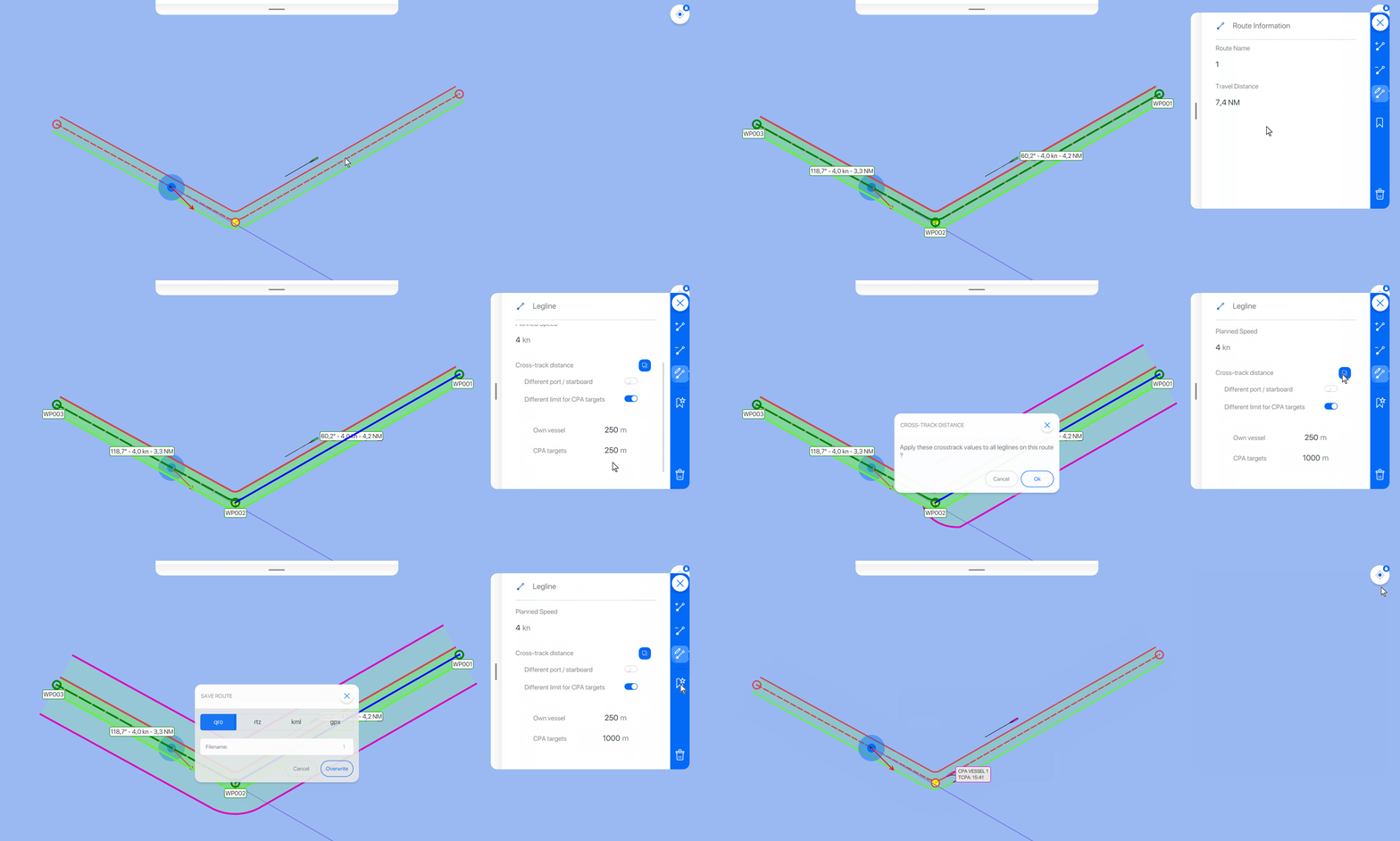
The CPA XTD will display only in route Edit mode. Toggling XTD on or off in the route radial menu will only show the own XTD (as before).
Generated routes with asymmetrical XTD and/or separate XTD for own vessel and CPA only work in Qastor versions 3.22.5 and newer.
Saving a route shows a warning that the new route is only usable in this version or newer.
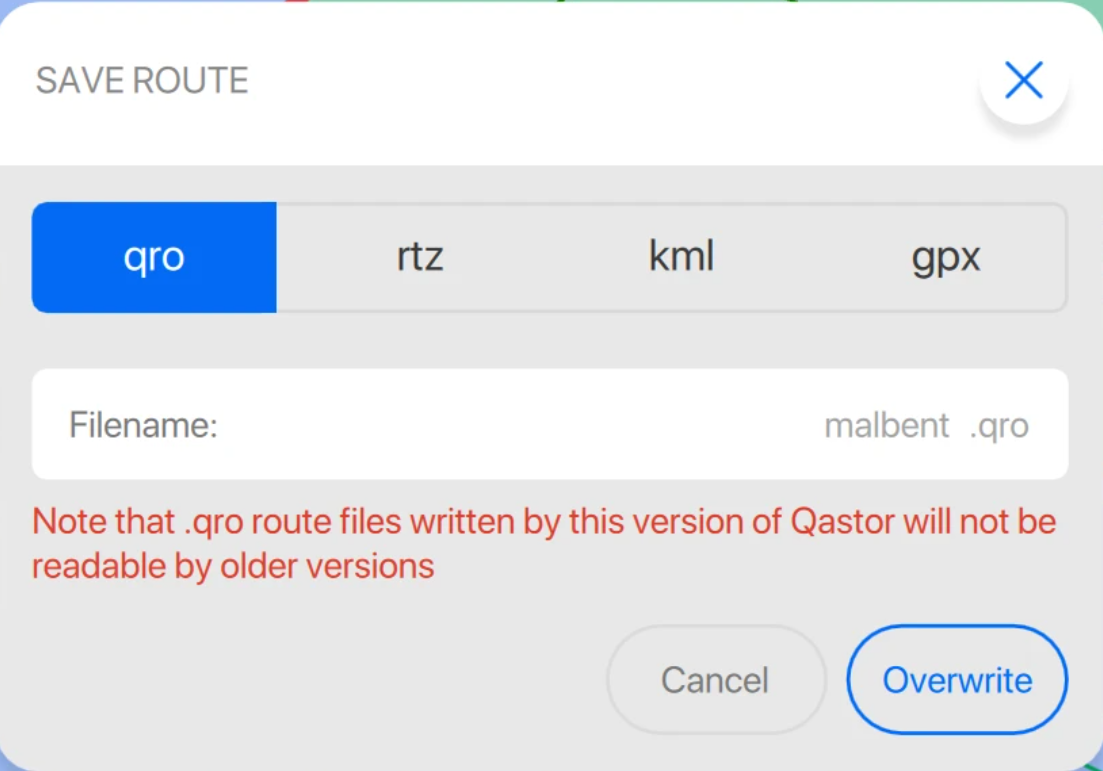
Routes made in older versions, such as 3.22.5, are still forward compatible.
Change text from ‘Show Meteo Overlay Button' to 'Show Map Overlay Button’
In Settings > User Interface > Visibility Panels, the text reads “Show Meteo Overlay Button”. That used to be correct, but now we have added Targets and Docking to that button; the name should reflect that, and the text should read “Show Map Overlay Button”.

Lock Line settings are also saved in profile
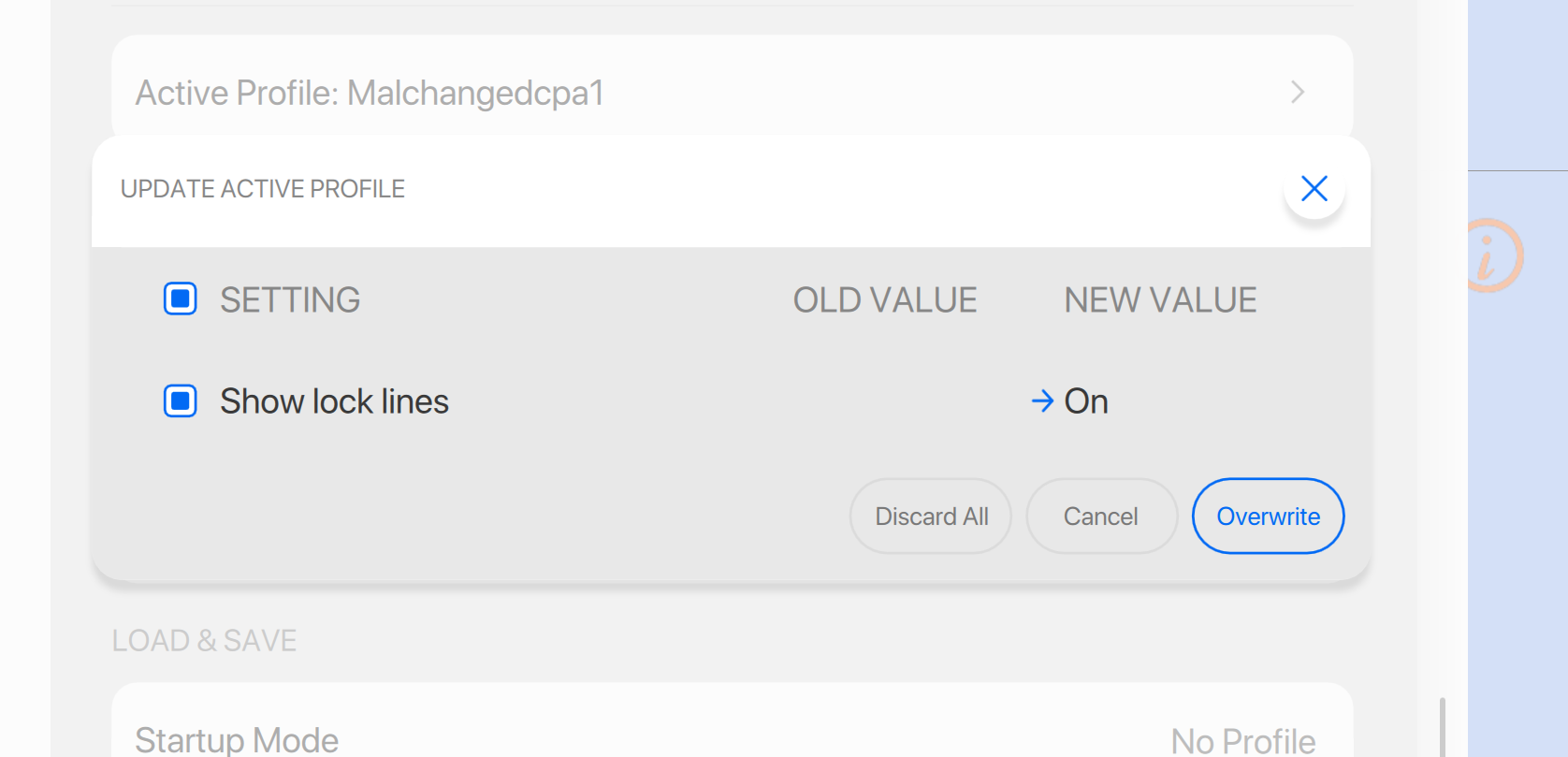
When different docking lines were set to On or Off and saved in a profile, the Lock Line setting (> Settings > My Vessel > Docking > Show Lock Lines) was not saved. As a result, when switching between profiles, all other docking object types follow the settings saved in the profile, but Lock Line visibility does not. Lock line settings are now saved in profiles.
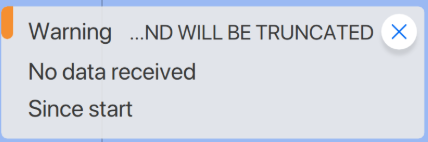
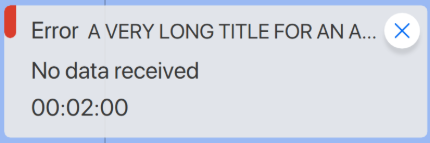
Change notification message title alignment
The text should be truncated at the start, not the end, in the notification.
|
Before |
After |
|---|---|
|
|