
This document explains how to load Entwine Point Tiles (EPT) from a local EPT database (folder) or a network URL, and control streaming performance in Fledermaus.
Introduction
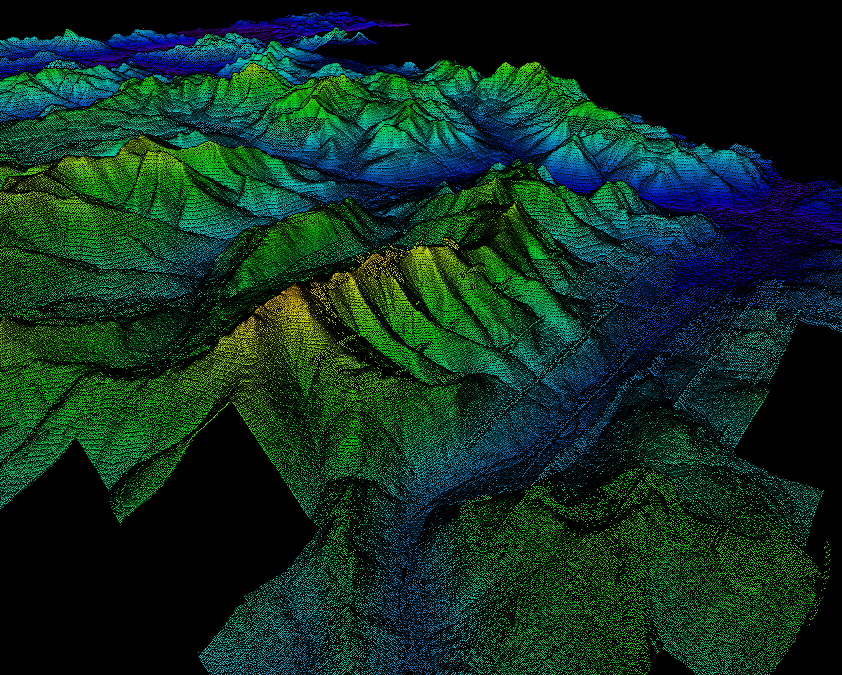
Entwine Point Tiles (EPT) are a point‑cloud format designed for efficient streaming and visualization of large datasets.
Fledermaus supports EPT as a Point Cloud object by dynamically streaming points from disk or network sources and using spatial indexing to automatically adjust the level of detail based on the camera view. You can also control performance through a configurable Streaming Point Budget.
You can create a Point Cloud Streaming object by loading an existing EPT data source from either a network location or local files. If you need to generate your own EPT files from LAS/LAZ datasets, you can follow the steps outlined in the Entwine Quick Start guide.
In Fledermaus, EPT datasets can be used as Point Cloud objects in three ways:
How to Load EPT Database
Step 1: Launch Fledermaus
Step 2: From the main menu, select:
Import → Entwine Point Cloud
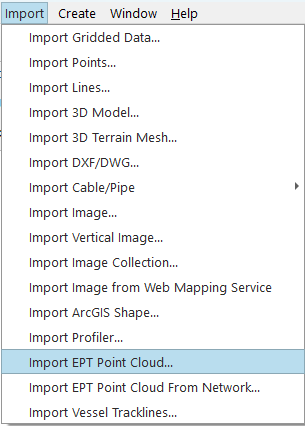
Step 3: Browse to the local EPT folder and select the ept.json file
Step 4: Save the .pointcloud object when prompted
How to Create an EPT Database
To load a local EPT point cloud, you first need to create an EPT database from your LAS/LAZ files using the Entwine command-line tool.
Installation and Setup
-
Install Entwine via Conda.
Follow the Entwine Quick Start to install Entwine, then create the environment:
Bashconda create -n entwine -c conda-forge entwine -
Activate the Entwine environment:
Bashconda activate entwine -
Build the EPT database:
Bashentwine build -i <input path> -o <output folder>Replace
<input path>with the LAS/LAZ file or directory, and<output folder>with the location where the EPT database will be created.
How to Load an EPT Point Cloud from a Network
Step 1: Launch Fledermaus
Step 2: From the main menu, select:
Import → Entwine Point Cloud
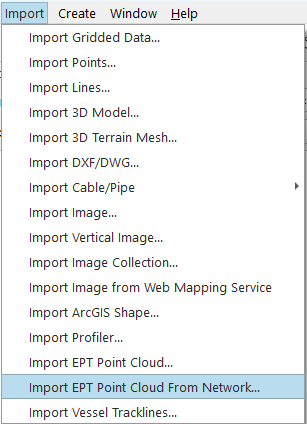
Step 3: Locate a Public EPT Dataset
Entwine Point Tile (EPT) datasets are available from a variety of organizations worldwide. Any valid EPT dataset can be loaded into Fledermaus using its ept.json URL.
Examples of EPT data providers include:
-
USGS 3DEP
-
NOAA Digital Coast
-
State and provincial mapping agencies
-
National mapping organizations
-
University and research institutions
-
Commercial cloud-hosted EPT repositories
For this example, we will use a USGS dataset available through the USGS Entwine viewer:
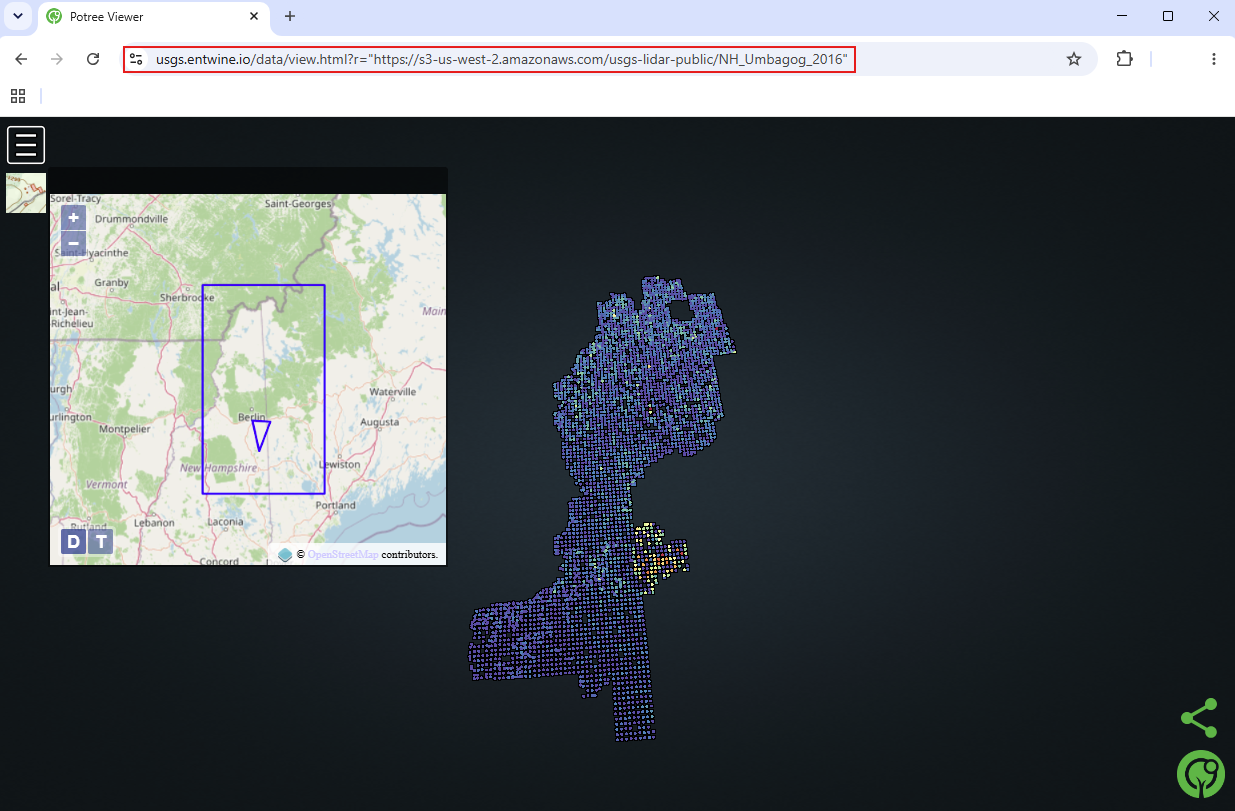
Step 4: Obtain the EPT URL
The USGS Entwine viewer URL contains the location of the actual dataset in the r= parameter.
For this example, the dataset URL is:
https://s3-us-west-2.amazonaws.com/usgs-lidar-public/NH_Umbagog_2016
To create a valid EPT URL for Fledermaus, append /ept.json to the end of the dataset URL.
Resulting EPT URL:
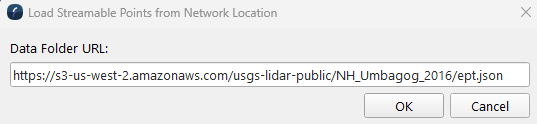
https://s3-us-west-2.amazonaws.com/usgs-lidar-public/NH_Umbagog_2016/ept.json
This is the URL that should be entered into the Import EPT Point Cloud dialog in Fledermaus.
Step 5: Save the Network Point Cloud
After entering the EPT URL and clicking OK, Fledermaus prompts you to save the network-based point cloud.
Choose a location and filename for the point cloud, then click Save.
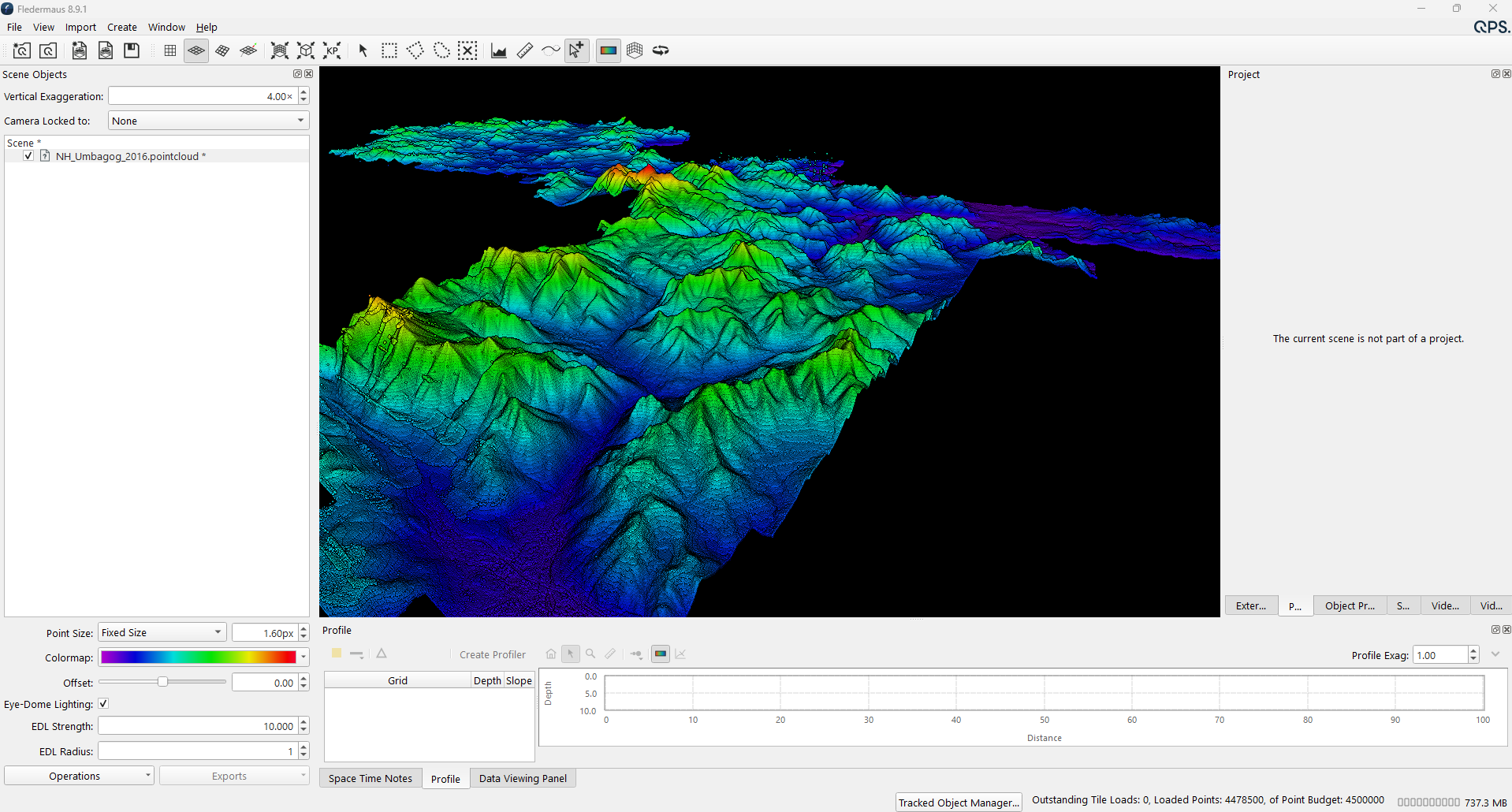
The saved file contains a reference to the network dataset and allows the point cloud to be reopened later without re-entering the URL.
Working with EPT Point Clouds
Streaming Point Budget
The Streaming Point Budget controls how many points are loaded onto your screen at one time. Fledermaus streams points on demand based on the camera view location — adjusting this setting lets you balance visual detail against performance.
Step 1: Open Preferences
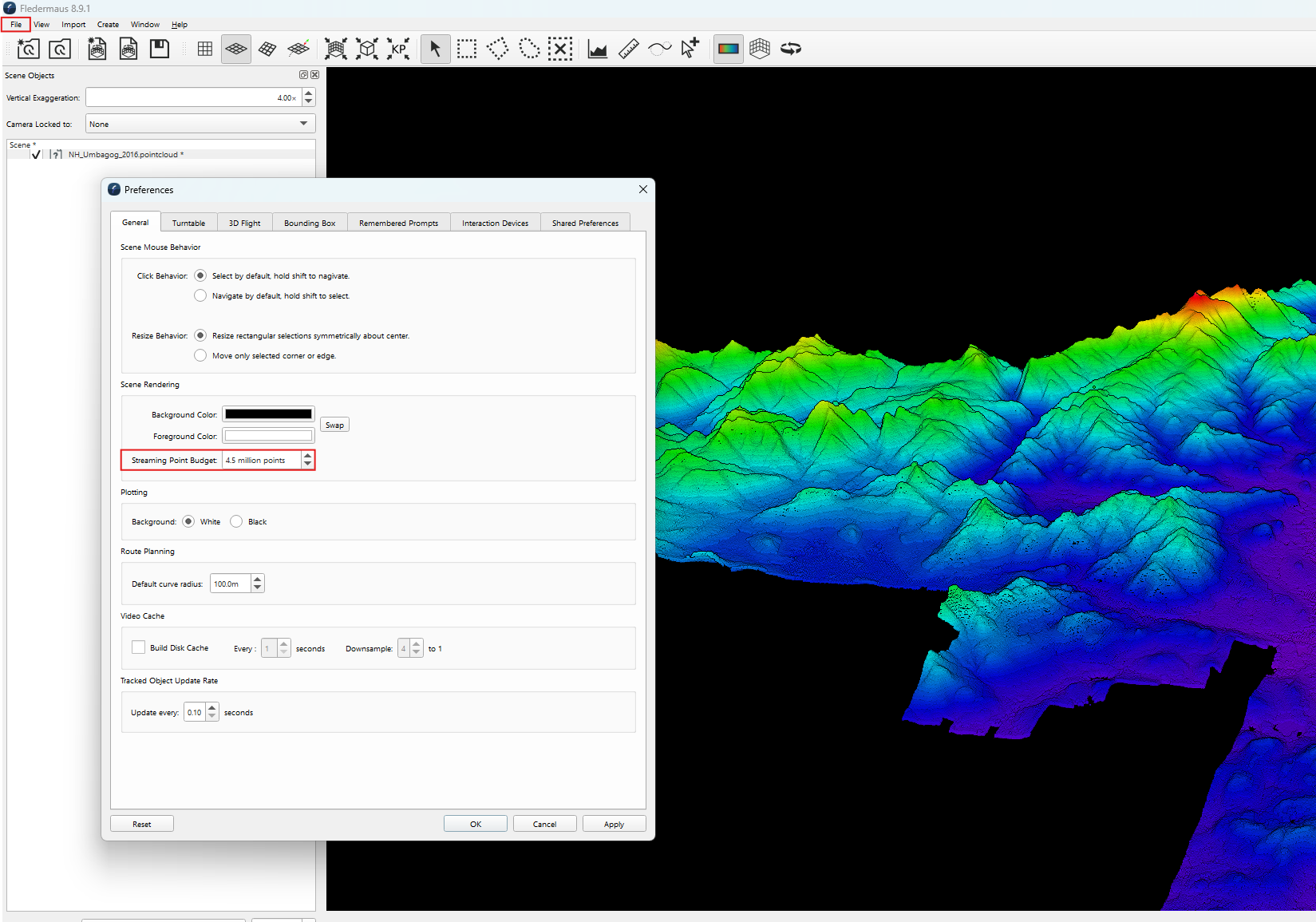
Select File → Preferences...
Step 2: Set the Streaming Point Budget
In the General tab, specify how many million points your "Streaming Point Budget" is.
-
A higher value = more detail, but more system resources
-
A lower value = better performance on less powerful hardware
Step 3: Monitor the streaming status
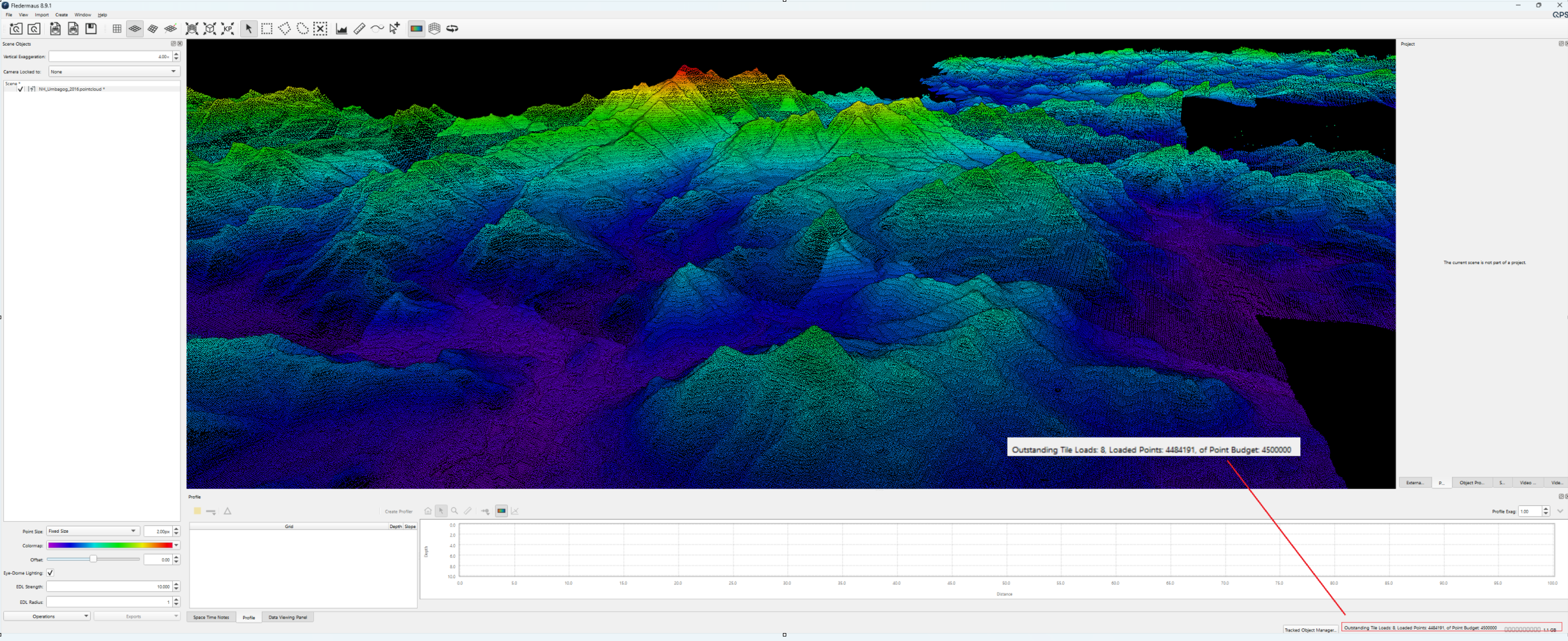
The number of tiles left to load, the number of points currently loaded, and the streaming point budget are displayed at the bottom right of the Fledermaus window.
To keep in mind
-
EPT uses spatial indexing (tiles) — this is different from other Fledermaus formats like dynamic surfaces. The tiled structure allows optimized streaming and rendering.
-
The streaming budget applies to both local and network-loaded EPT point clouds.
-
For network sources, loading speed will also depend on your internet connection.