
Selecting Result Data Items
Select items from:


Deskewing means calculating a 'new' position (using SOG and COG) for the time of trigger. This trigger can be On Time, On Fix, On Node Result update or On System update.
The following options are not considered here: Anchors, Catenary, Bargetrack, Miscellaneous.
Computations
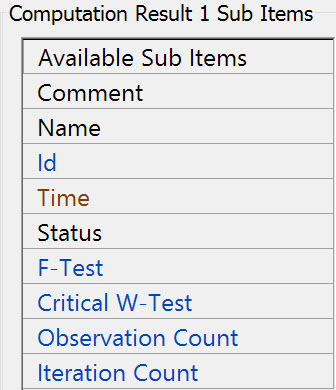
These are the sub-items associated with a Computation. The need to select any one of them is remote in dredging.
-
The first entry is always [Priority List]. This means that the computation with the highest priority, as defined in the Controller's Computation Setup, will be used.
-
The rest of the list will show all available computations, as defined in the Controller's Computation Setup of the current selected QINSy database
Refer to for further information.
Nodes
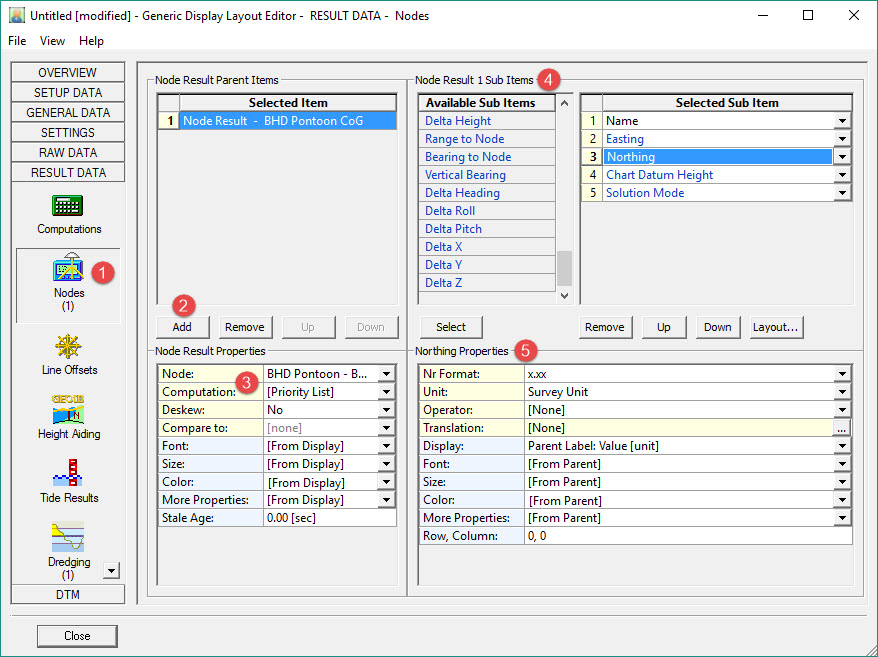
The first entry is always [Steered Node]. It can be changed if the position of the steered node is not required.
In our example the Pontoon CoG is the steered node.




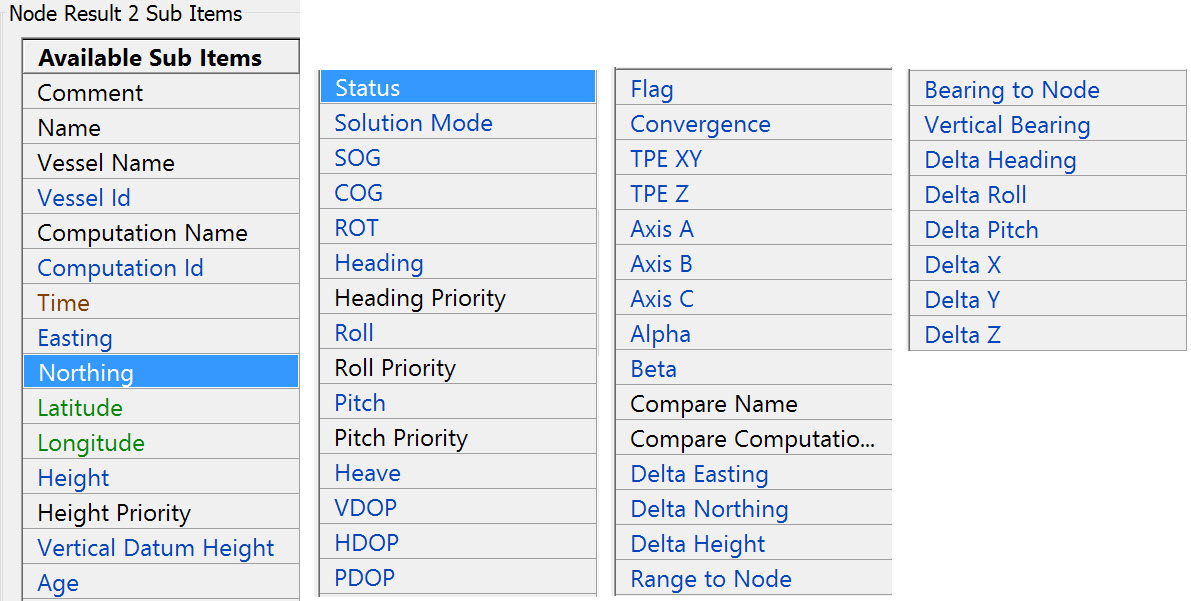
These are all the sub-items available:

Refer to for further information.
Return to: top of page.
Return to: BHD - Generic Display.
Line Offsets
A list with 10 entries. The first one is always the Controller's mainline.The other 9 are the Additional mainlines.
The actual mainline/additional mainline selection (POINT, LINE, ROUTE) is done in the Controller's Session Setup.

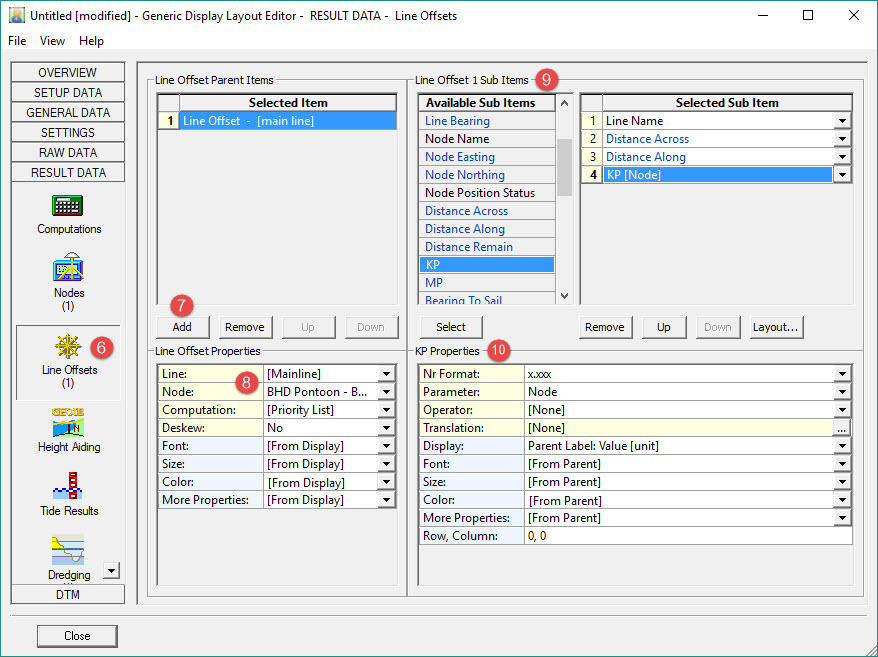


This is the current line loaded under Controller - Settings - Session Setup - Line Planning.
Select the Node to be reference to the mainline.

For example: Distance Across, Distance Along, KP (kilometer point), and Name.
These are the available sub-items:
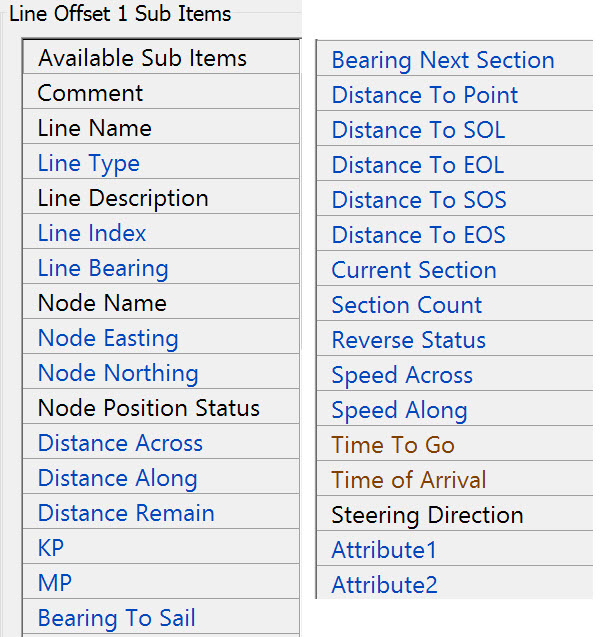

Refer to for further information.
Return to: top of page.
Return to: BHD - Generic Display.
Height Aiding

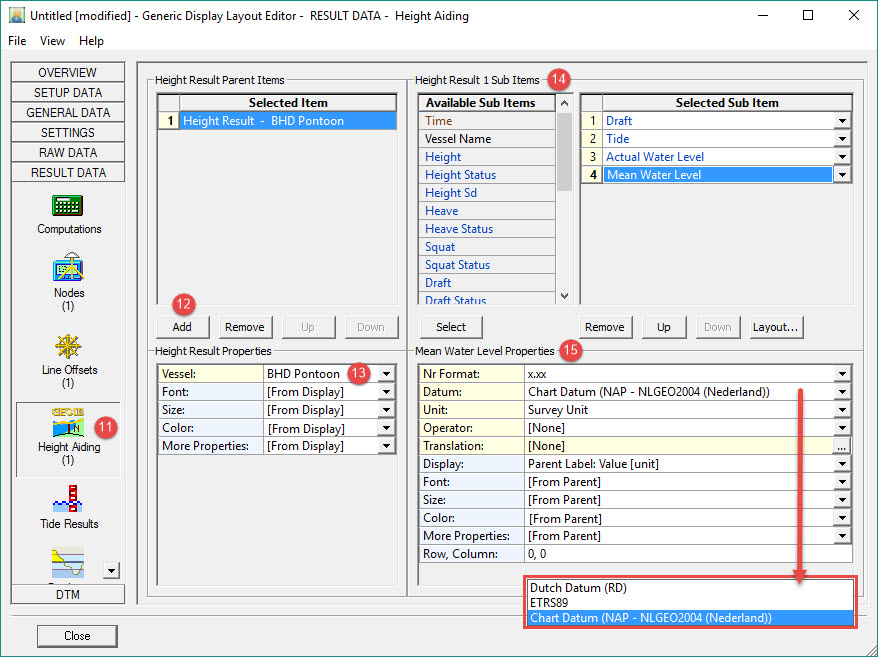


This means that the first defined object in the template database is used (the software names this first object as Object Id 1).
In Database Setup you will see a 'square' icon in front of the vessel name.
The rest of the list will show all available objects existing in the current selected QINSy database.

Draft - The instantaneous distance from actual water level to the draft reference point on the keel.
Mean Actual Water Level - The Actual Water Level minus the heave of the object, i.e. the actual water level without the swell influence.
These are the available sub-items:
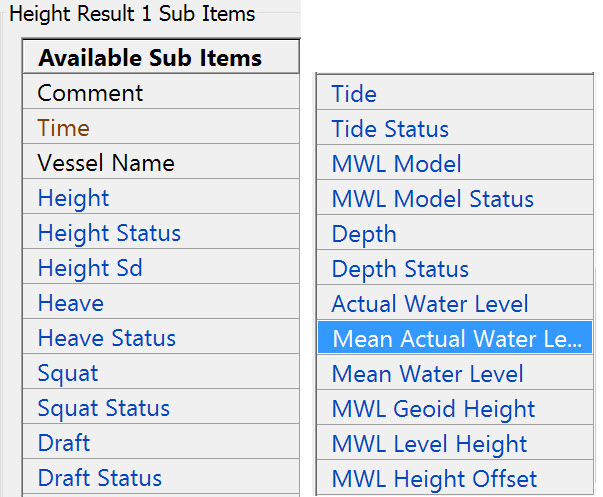

For Datum there may be several options to choose from.
Refer to for more information.
Return to: top of page.
Return to: BHD - Generic Display.
Tide Results
The first entry is always [Reference Vessel]. This means that the first defined object in the template database is used (with Object Id 1).
In Db Setup you will see a 'square' icon in front of the vessel name
The rest of the list shows all available objects, existing in the currently selected QINSy database.
These are the sub-items:
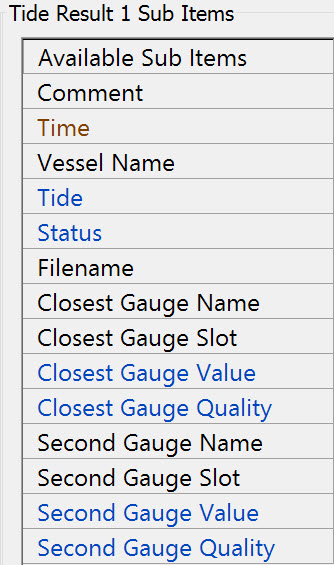
Tide: This is the tide component of the Height Aided Observation, on Survey Datum. This observation is calculated by the Height Aiding driver (which is always present in the windows taskbar).
Notice that this item is the same as item Tide under Height Aiding.
Refer to for more information.
Return to: top of page.
Return to: BHD - Generic Display.
Dredging Results
Lists all available dredging systems that exist in the currently selected QINSy database.

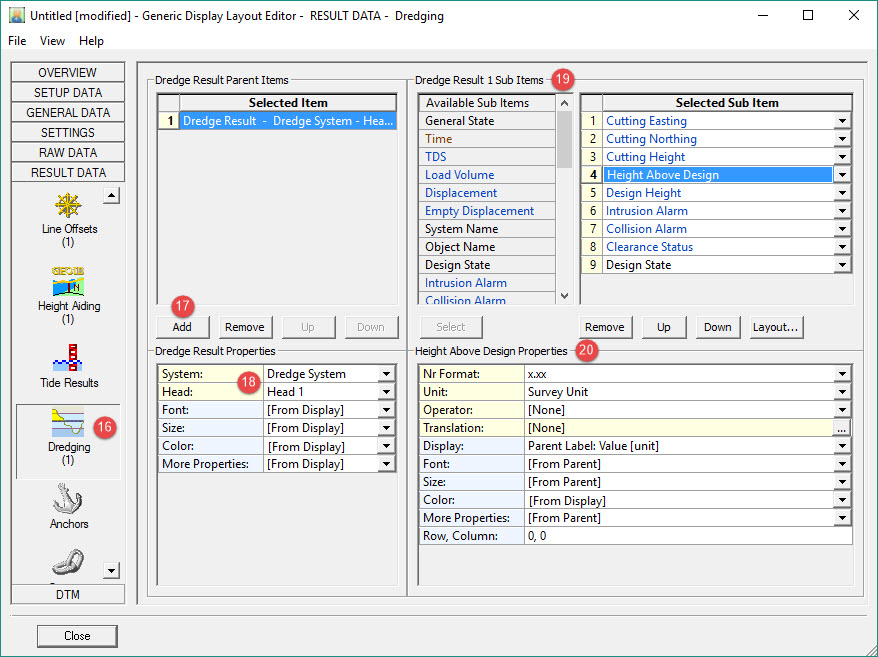


Most sub-items below are 'connected' to a particular head, but some are head independent, i.e. it does not matter whether Head 1 or 2 is selected.
The presence of Head 2 depends on the type of dredger (backhoe, cutter, hopper, etc.), as defined in the Database Setup.

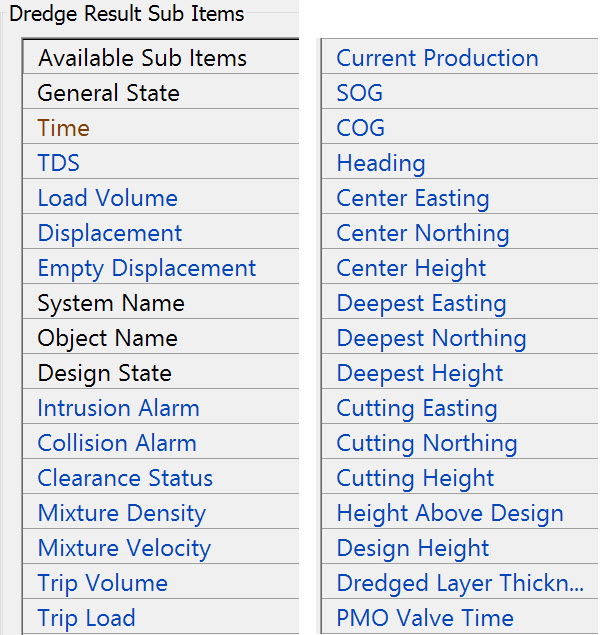
Notes on sub-items:
|
Sub-item |
Description |
|||||||||||||||||||||
|---|---|---|---|---|---|---|---|---|---|---|---|---|---|---|---|---|---|---|---|---|---|---|
|
General State
|
Sailing Empty: Hopper is sailing but empty.
|
|||||||||||||||||||||
|
Time
|
Update time of the dredging driver. |
|||||||||||||||||||||
|
TDS
|
Tons Dry Solid in [tons]
|
|||||||||||||||||||||
|
Load Volume
|
Actual Load Volume in [tons]
|
|||||||||||||||||||||
|
Displacement
|
Actual Displacement in [tons]
|
|||||||||||||||||||||
|
Empty Displacement
|
Empty Displacement in [tons]
|
|||||||||||||||||||||
|
System Name |
The name of the selected Dredging System, as defined in the Database Setup program. |
|||||||||||||||||||||
|
Object Name |
The name of the object on which the selected head is located, as defined in the Database Setup program. |
|||||||||||||||||||||
|
Design State |
Above: Head footprint is above design (including tolerance).
|
|||||||||||||||||||||
|
Intrusion Alarm
|
Value depends on the Horizontal Clearance Error, which is set in the Controller Session Setup, Dredging, Intrusion Detection page.
Same alarm as seen in Alert Display, Category "Dredging Result", Type: "Intrusion Detection: Error (Emergency Hoist)". |
|||||||||||||||||||||
|
Collision Alarm |
Value depends on the Horizontal Clearance Warning, which is set in the Controller Session Setup, Dredging, Intrusion Detection page.
Same alarm as seen in Alert Display, Category "Dredging Result", Type: "Intrusion Detection: Warning". |
|||||||||||||||||||||
|
Clearance Status
|
Value depends on the Horizontal Clearance Warning, Horizontal Clearance Error and/or Vertical Clearance, all set in the Controller Session Setup, Dredging, Intrusion Detection page.
|
|||||||||||||||||||||
|
Mixture Density |
Current mixture Density from production sensor, (C-O) already applied. |
|||||||||||||||||||||
|
Mixture Velocity |
Current mixture velocity from production sensor, (C-O) already applied. |
|||||||||||||||||||||
|
Trip Volume |
Current volume inside the selected dredging system. |
|||||||||||||||||||||
|
Trip Load |
Current load inside the selected dredging system. |
|||||||||||||||||||||
|
Current Production |
Current production, derived from production sensors.
|
|||||||||||||||||||||
|
SOG |
Speed over ground of the reference node of the selected head object. |
|||||||||||||||||||||
|
COG |
Course over ground of the reference node of the selected head. |
|||||||||||||||||||||
|
Heading |
Grid heading of the selected head object. |
|||||||||||||||||||||
|
Center Easting/Northing/Height |
Coordinates of the dredge head CoG. |
|||||||||||||||||||||
|
Deepest Easting/Northing/Height |
Coordinates of the deepest point of the dredge head. |
|||||||||||||||||||||
|
Cutting Easting/Northing/Height |
Coordinates of the cutting point of the dredge head. |
|||||||||||||||||||||
|
Height Above Design |
Actual height minus the design height at footprint of the selected head.
|
|||||||||||||||||||||
|
Design Height |
Height of design at footprint of the selected head.
|
|||||||||||||||||||||
|
Dredged Layer Thickness |
Amount of removed soil.
|
|||||||||||||||||||||
|
PMO Valve Time |
Total time that PMO (Poor Mixture Overboard) was open (Spilling overboard). |

Return to: top of page.
Return to: BHD - Generic Display.
Eventing
To be added.
Return to: top of page.
Return to: BHD - Generic Display.