
This how-to outlines the steps needed to activate or deactivate a Softlock license using the License Manager.
How to Activate your license
-
Using the Windows Explorer or from Qinsy, Qimera or Fledermaus, launch the License Manager
-
Click Add Activation Code… button at the bottom of the window.
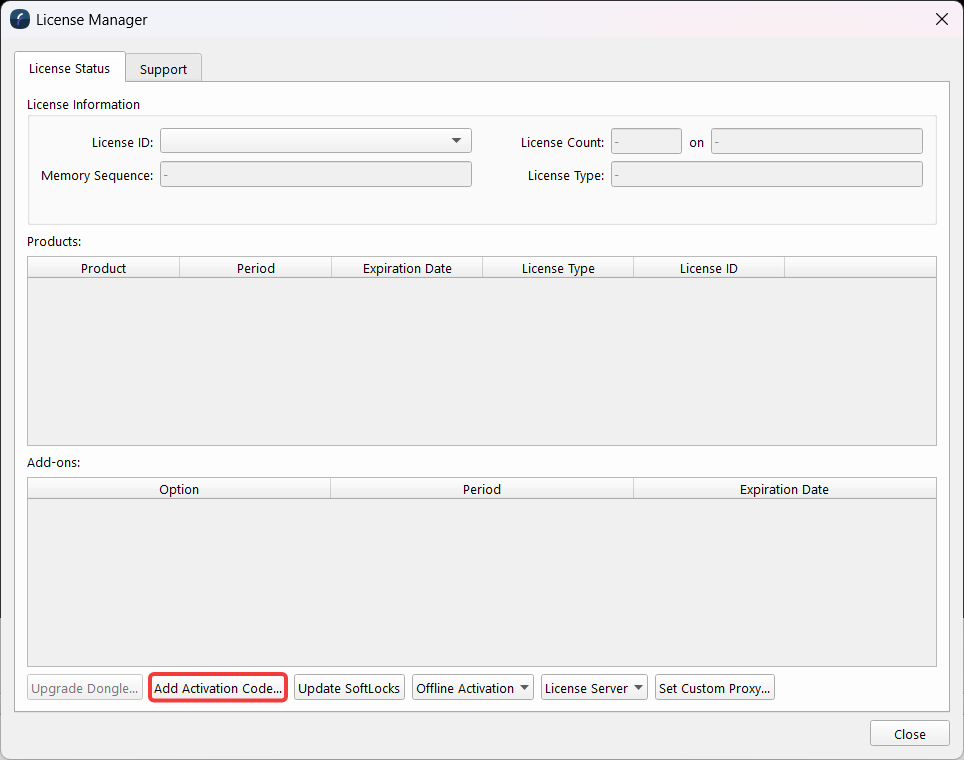
License Manager - Add Activation Code…
-
A new window will load; you can either type the string value out or click the Load XML File…
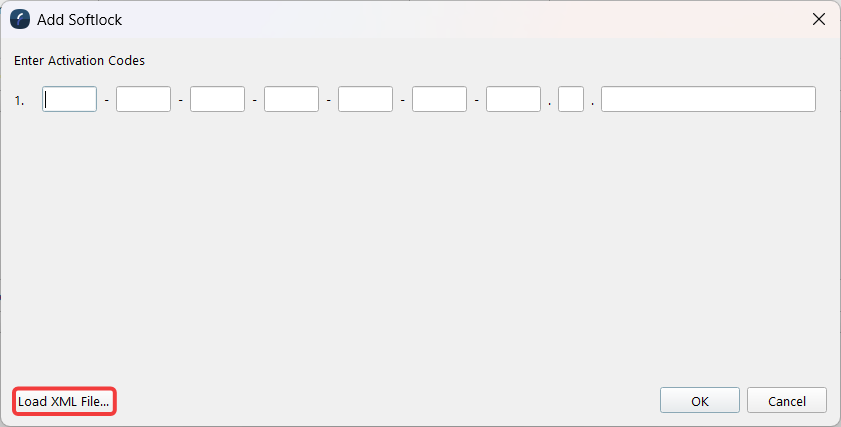
Add Softlock - Load XML File … -
Navigate to the XML file and load. Click OK in the Add softlock dialogue to activate your license, then click OK. The following message should display; it will depend on the products loaded as to what will be activated.
-
You should now see:
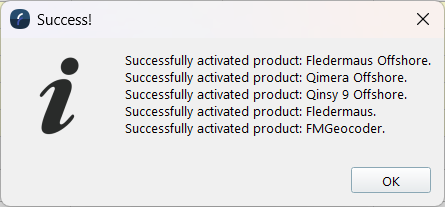
Successfully Activated Product
If you get an error message, please contact the support department for further help.
How to Deactivate your license
To use your softlock license on another computer, you will need to release it
-
Launch the License Manager using one of the following methods:
-
Open it directly from Windows Explorer, or
-
From within Qinsy, Qimera, or Fledermaus, go to the Help drop-down menu and select Show License Manager…
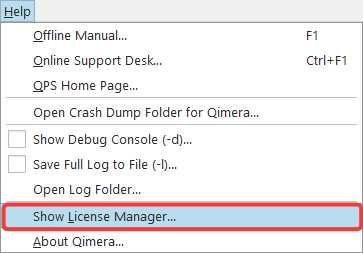
Show License Manager…
-
-
Click the product(s) you would like to deactivate. On the right-hand side of the window, select Deactivate.
-
Make sure to click Online Deactivation. Online Deactivation releases the license immediately, making it available for reactivation on another machine. If you choose Offline Deactivation instead, you will need to contact the support department to complete the process manually.
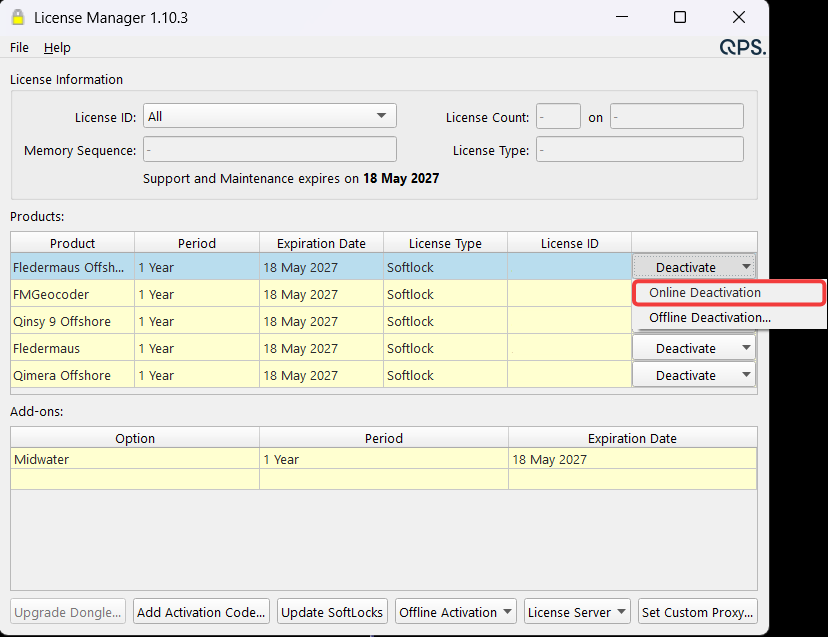
License Manager Online Deactivation
-
A confirmation dialog will appear asking "Are you sure to remove the soft lock license for [product name]?" — click Yes to proceed with the deactivation.
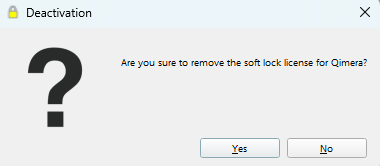
Confirmation Dialog
-
You will receive a confirmation message.
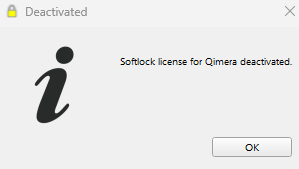
Deactivated confirmation