
Description
Driver to decode in real-time laser data from a HESAI XT-32 lidar.
HESAI’s High-Precision 360° Mid-Range Lidar product line consist of three models:
XT-32, XT-32M and XT-16.
All models use Laser class 1, which is eye-safe.
.jpg?cb=6b48ad00f88b9226912f6d5702bd170e)
Driver Information
System Interfacing
Click to expand...
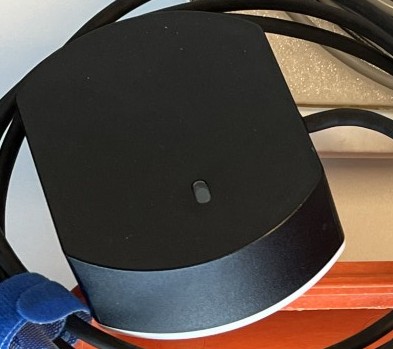
Connection Box
The sensor comes with a connection box that provides a convenient connection for Power, Ethernet and GNSS/Timing inputs.
Box and lidar are both connected via a 9 pins lemo plug.
For all interfacing details: please consult HESAI's own User Manual, specifically for interfacing your GNSS and Pulse to the GNSS port of the connection box.
Network Connection
All communication between Qinsy and the sensor goes via a LAN network which is accessible through the Ethernet connection of the Connection Box.
Two connections will be established by the driver: a permanent UDP connection for receiving the continuous lidar data stream and when communication is needed with the scanner (two-way) a TCP connection will be established. In that case the driver will act as TCP Client.
The exact IP Address of the laser unit should be provided by the manufacturer or your re-seller or is stated in the documentation that comes with your scanner.
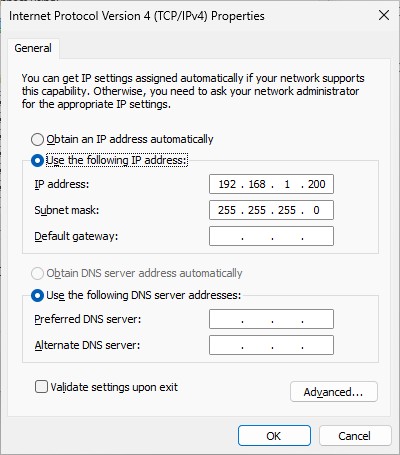
The IP Address of your Qinsy computer's network should be in the same range, except for the last digit: this must be a unique number.
Example:
Suppose the IP address of your sensor is 192.168.1.201.
Then you could use 200 as last digit for your Qinsy computer network.
Use for the Subnet mask the values 255.255.255.0
To change the network address of your computer: go to the PC Settings, find the Network and Internet, Network and Sharing Center, Change adapter settings, Click right-mouse on Local Area Connection, Properties, Internet Protocol Version 4 (TCP/IPv4) and finally select Properties.
It is advisable to check the network connection between your computer and the unit prior to going online.
You may do this by using the Web GUI interface or by simply using the ping command from the Windows Command Prompt:
Select Start from the Windows Task bar, Run..., Cmd <Enter>, and 'ping' the address of the laser.
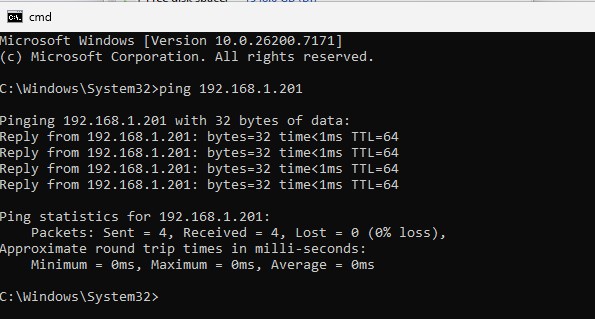
The network connection is okay when you receive a reply three times within a few milliseconds.
Timing
Due to network characteristics in general and because of possible latency inside the scanner, time stamping upon arrival may result in inaccurate and variable timing.
Therefore timing via Time Synchronization (aka PPS) pulse from a GNSS is highly recommended.
This means that your sensor must be interfaced to an external Time Synchronization pulse from a GNSS receiver and a UTC time-tag message from the same receiver.
With this scanner it can be done quick and easy using the dedicated GPS port of the Connection Box.
For all interfacing details (pin assignment, etc) please consult the scanner's User Manual.
Use the Web GUI interface to select the correct Clock Source and NMEA sentence and to check if NMEA/Pulse from you external GNSS is accepted by the scanner or not.
Note that at time of writing the only supported baudrate for the incoming NMEA sentence is 9600 bps.
Web GUI
Although most (operational) settings can be controlled directly from inside Qinsy, some settings must be set and checked on forehand before going online.
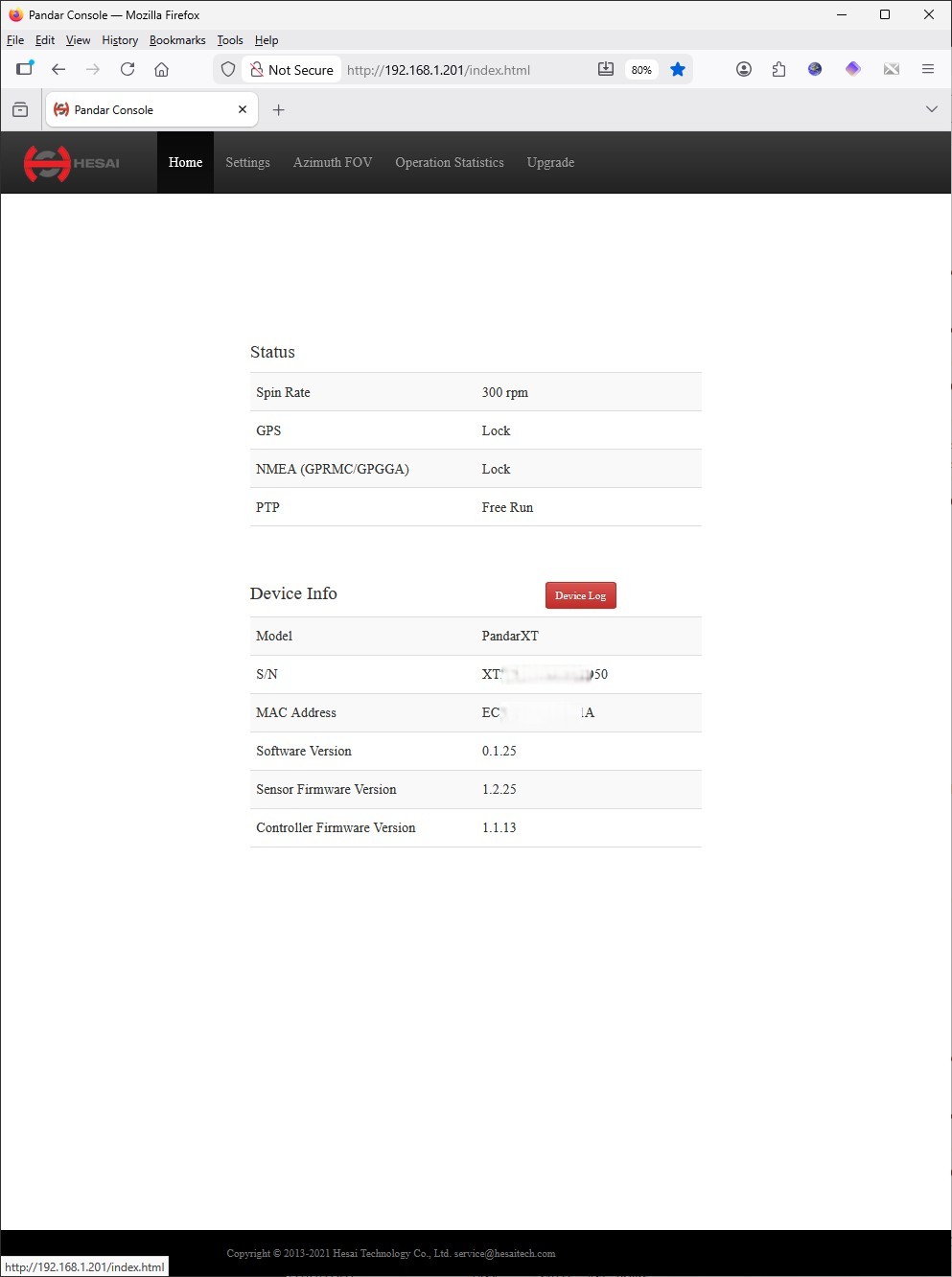
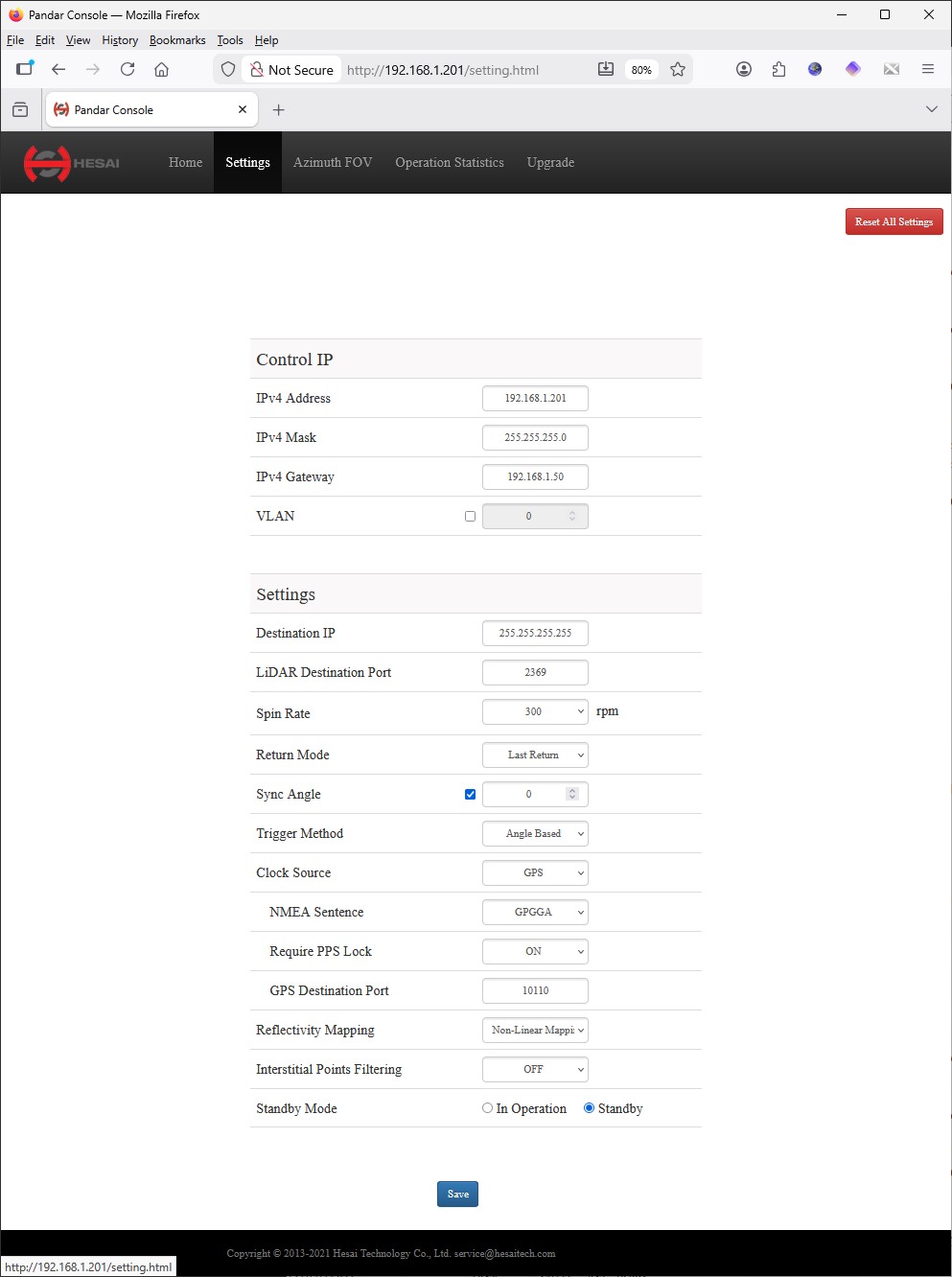
So enter the IP address of the scanner in the address bar of your standard browser (in this example http://192.168.1.201/) and the following GUI will appear:
|
Home page |
Settings page |
|---|---|
|
|
|
This Web GUI Home page is the easiest place to check if GPS/Timing from your external GNSS is accepted by the scanner or not:
Both showing ‘Lock’ means that the pulse and the time message from the external GNSS is accepted. If both or one of them is showing ‘Unlock’ then please check your settings on the Settings page or the physical interfacing with your external GNSS.
|
Some important settings which should be checked on forehand
When changing time related settings please verify the status again on the Home page. Other settings (like Spin Rate, Return Mode, Reflectivity Mapping and/or Standby Mode) can be selected while being online using the Controller Echosounder Settings, Control tab page. |
PandarView
HESAI has developed their own GUI visualizer software which can be downloaded for free from their website.
Note that this software does not need to be installed for Qinsy but may come in handy for quick checking the setup and connection.
It is not recommended to run (connect) this software simultaneously with Qinsy Online otherwise you may experience network connection conflicts.
Qinsy Setup
Click to expand...
Database Setup
You will find the laser system driver under category type Multibeam Echosounders because internally a laser sensor is treated as a multibeam system: creating multibeam x/y/z observations.
Multibeam versus Laser scanning terminology: ping = scan = swath = line, footprint = pixel = pulse = fire = channel = return
First Wizard Page
Add a Multibeam Echosounder system to your template setup and select from the driver list "Laser Scanning - HESAI XT-32".
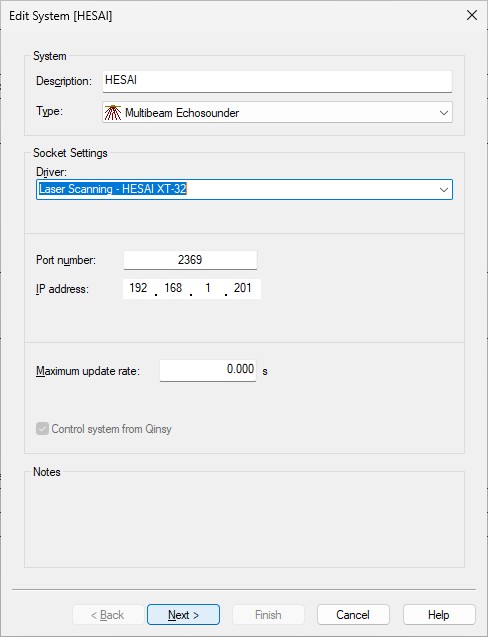
Note that the driver will automatically detect the specific details (like number of channels, the vertical and horizontal correction angles, the s/n, etc) of the exact model that you are using.
-
The Port number is default 2368 but you should check if it is the same as the LiDAR Destination Port set in the Web GUI Settings page (see paragraph System Interfacing).
-
Enter the exact IP Address of the laser scanner. In this example it is 192.168.1.201.
-
Leave the Maximum update rate at zero.
Second Wizard Page
-
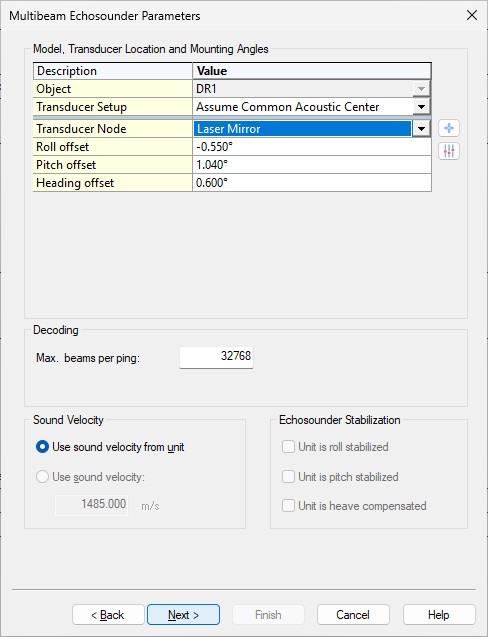
Select the Transducer Node location that represents the sensor data origin (0, 0, 0) of the laser scanner.
-
The mounting angle offsets (Roll, Pitch and Heading offset) should be established with a calibration procedure.
It is important to select the correct Scanner Mounting in the Qinsy Online setup: in that case you can leave the Roll, Pitch and Heading offsets close to zero so you don't have to use values anymore like +270 or -90, etc. -
Leave the Max. beams per ping value at 32768.
The actual number of beams will be variable and depends for example on the used on-line settings and on the targets being scanned. You will notice that under normal survey conditions the actual number of beams will be much lower.
Example Mobile Scanner Setup
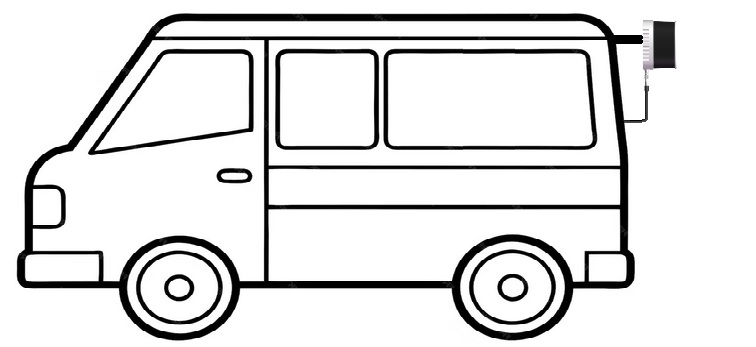
In this setup the sensor has been mounted on the back of a car in order to scan the road:
90° backward tilted with the cable pointing down.
Therefore you will need to select in the Online setup for the Scanner Mounting setting "Backward Tilted, Cable Down"; so the default mounting angle offsets will stay close to 0° after calibration.
Third Wizard Page
-
You may leave all parameters at their defaults and continue to the last wizard page.
Last Wizard Page
-
Leave all parameters at their defaults and press Finish.
Qinsy Online
Click to expand...
Windows Firewall
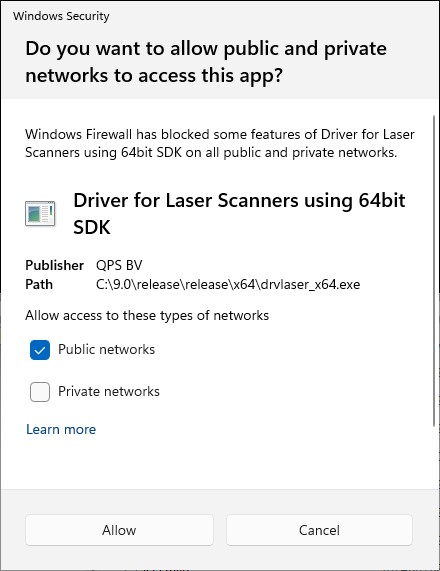
The very first time you go online Windows may pop up a security message:
Please make sure to Allow access.
If you forgot to do this, or if you are not sure if this has been done, you may want to follow the steps as described in the Additional Info or Trouble Shooting section about Windows firewall.
Controller
Select Echosounder Settings, click on the Laser System icon and select the 'Control' tab page.
Here you can set the sensor's specific settings and you can control the start and stop of the scanning.
(To change Network and Timing specific sensor settings you should use the Web GUI as described under System Interfacing)
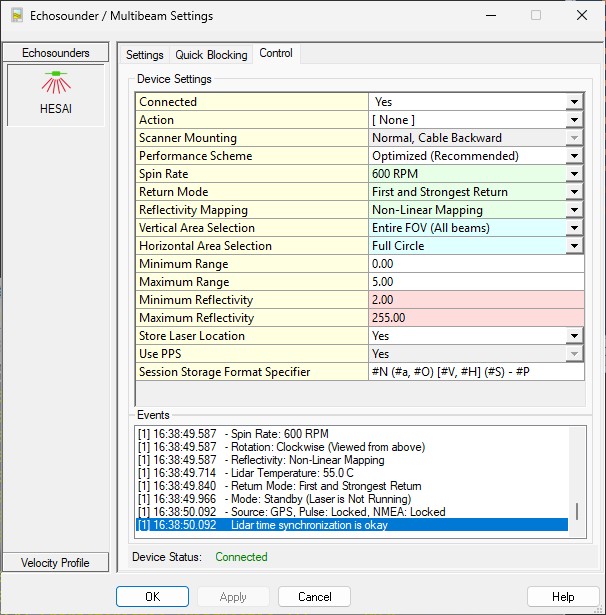
Changing settings will be applied immediately (no need to hit the OK or Apply button); except for the manual input field settings (like min/max range/reflectivity)
|
Control |
Device Settings |
|---|---|
|
Connected |
In order to communicate with the scanner, the driver must make a network connection first. This attempt to connect will always be done automatically when going online.
When you go offline the driver will automatically disconnect the network connection but you may also manually disconnect first by selecting No.
|
|
Action |
Selected action will be send immediately to the laser unit. Of course you must have initialized the connection first in order to select any action. Note that any selection will always revert back to [None], after each selected action. Always wait a few moments after each action, until the status in the Event list is updated with a message; it takes some time before the unit handles the requested command (action) and reverts back.
|
|
Scanner Mounting |
This is a very important setting and it informs the driver how the scanner is physically mounted on the vehicle, with respect to its heading.
More mounting scenarios are predefined and may be selected. Please contact QPS in case your setup is not listed You can only change this setting when not connected. |
|
Performance Scheme |
Note that the selected Spin Rate, Return Mode and Field of View (FOV) Areas will have an impact on the real-time performance. In combination with the used hardware (hard drive, network card, graphics card, etc) this could cause performance issues. So for smooth data handling select a scheme that fits your setup:
|
|
Spin Rate |
Select the Spin rate of the motor (Rounds Per Minute)
This setting is communicated directly with the scanner so you can only change this setting when connected. |
|
Return Mode |
This will set the scanner in Single or Dual Return mode.
Note
This setting is communicated directly with the scanner so you can only change this setting when connected. |
|
Reflectivity Mapping
|
This setting affects the decoded reflectivity (or also known as intensity)
This setting is communicated directly with the scanner so you can only change this setting when connected. |
|
Vertical Area Selection |
The physical scan area comprises 32 laser channels and yields vertical 40 degrees Laser channel 1 is looking upwards with an angle of +15.0 degree, laser channel 16 (nadir) is looking forward (+0 degree) and laser channel 32 is looking downwards with an angle of -16.0 degree.
(Note that the mentioned numbers above are specifically for the XT-32 model; however you may select these schemes also when using the other models) Excluded data due to this setting will not be recorded! |
|
Horizontal Area Selection |
A full circle scan goes from 0 to 360 degrees, with a minimum angle step that depends on the selected spin rate and XT model used. 0 degrees means forward, 90 degrees means right (starboard side), 180 degrees looking backward (which is the cable direction) and 270 means left (port side).
(Note the label before and after the '/': the label before the '/' is useful when your sensor is mounted normally (flat) and the label after the '/' makes sense when your scanner is mounted tilted) The Horizontal Area selection will be corrected for the selected Scanner Mounting, which means that when you have selected the correct scanner mounting, then Starboard will be starboard, Port will be port, etc. (Make sure to leave the Azimuth FOV settings at the Web GUI Azimuth FOV page to their defaults for all channels: Start 0.0 and End: 360.0) Note that excluded data due to this setting will not be recorded! |
|
Minimum Range Maximum Range |
Set the minimum required / maximum allowed range in meters. Valid values: 0 to 300 meters. All three models will handle close targets (at very short distance, near zero) very well but note that the maximum target distance depends on the XT model you are using. Using this setting is recommended, but be careful: blocked data due to this setting (i.e. all returns outside these range limits) will not be recorded! |
|
Minimum Reflectivity Maximum Reflectivity |
Set the minimum required and maximum allowed intensity. Valid Values: 0 - 255 Interstitial (or ghost) returns will normally have a very low intensity (0, 1 or 2) so a default minimum reflectivity of 2 is highly recommended in order to get rid of those. Note that the reported reflectivity value may depend on the current Reflectivity Mapping setting. Note that blocked data due to this setting (i.e. all returns outside these intensity limits) will not be recorded! |
|
Store Laser Location |
If enabled, an additional pixel with zero range will be added to each line scan, in order to indicate the exact laser scanner location in the resulting point cloud. This extra pixel will always have beam number 0 and its intensity and quality values will be zero. |
|
Use PPS |
This setting is highly recommended in order to use exact time stamping of the laser data. When enabled, the laser unit must receive a valid PPS/Time Synchronization pulse from an external GNSS receiver and UTC time-tag message. See Timing in the System Interfacing section for more information. Note that this option is disabled while connected, so change setting Connected first from Yes to No in order to change it. |
|
Latency |
Enter a fixed latency value in milliseconds. When PPS/Time Synchronization is not used, time stamping of the data is done when the data packet is received at the UDP port.
A latency can be provided by the manufacturer or you may establish a value using a latency calibration procedure. This option is only available when PPS is not used for timing. |
|
Session Storage Format Specifier |
This format specifier can be used in combination with the Controller Session Storage Format Specifier #E The following specifiers are supported (plus your own free text): #N: Name of the system (as defined in your template setup)
The format specifiers are case-sensitive; if you use lower-case then only a value or index number will be displayed. So if you use #E in the Session Storage Setup the filename of the new recorded database will automatically contain the scanner settings that you were using. |
Displays
Generic Display
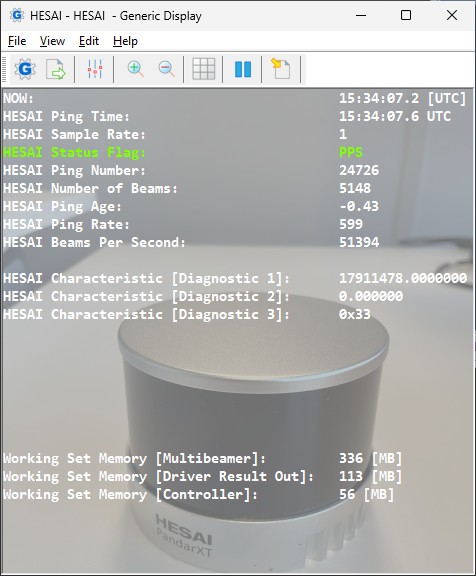
Use a Generic Display for showing various numerical values decoded from each scan:
the number of beams (points, laser returns) per second, the ping rate (10 or 20 Hz), the ping age (sec), status indicators, etc.
-
The Ping Age is the difference between the current Qinsy computer time and the time of the last received data package.
This value should be small, around zero! So it is an important value to monitor especially when setting 'Use PPS' is enabled.
For example if you notice a very high Ping Age value (+ve or -ve) then this is a severe indication that the initial timing inside the laser unit is wrong.
-
Use the Status Flag value as an indicator whether NMEA/PPS is accepted or not.
When NMEA/PPS is used and accepted then the status flag value will be 2 and otherwise 0.
(In the example screenshot above the Status Flag value of 2 has been translated automatically to ‘PPS’)
Raw Multibeam Display
Use this display to visualize the raw incoming laser points, relative to the laser center and uncorrected for motion.
The display will give you a good indication a) whether data is coming in b) what the approximate width & height extents of the data are and c) the intensity distribution.
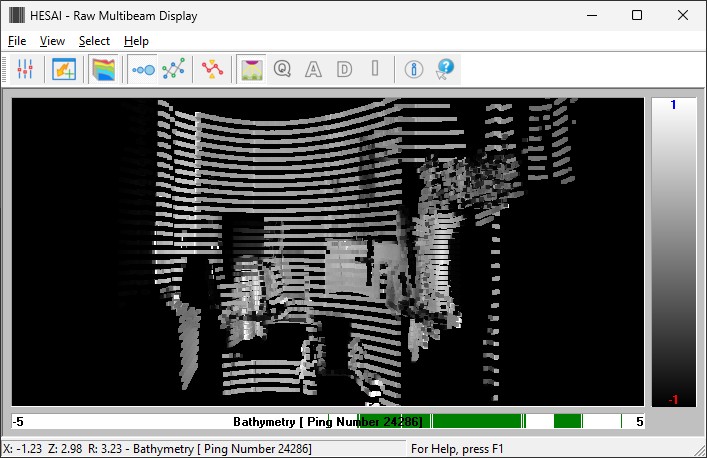
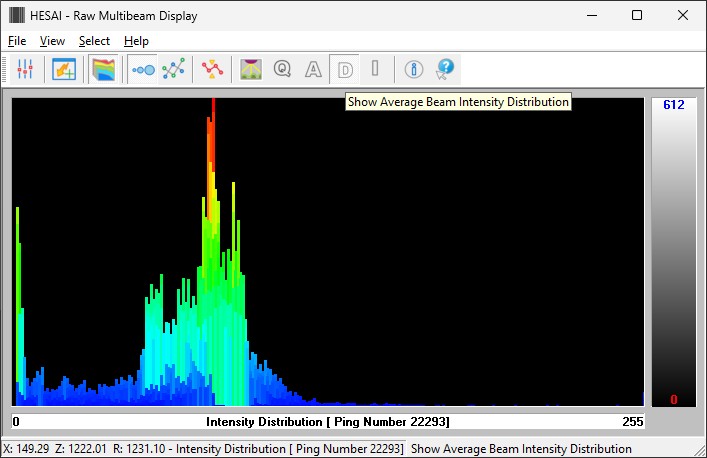
Use the Auto Scale button to show all data from the last ping inside the view, but bear in mind that all 3D laser data is presented in a 2D way.
The following View Properties are quite useful when you want to color code the points on Intensity (like in the example above on the left side):
-
Select for Color Coding Backscatter which means that the intensity attribute (Reflectivity) will be used.
-
Set the Backscatter Intensity min/max scale between 0 and the maximum expected intensity value (e.g 128).
To determine the maximum intensity value use the Average Beam Intensity Distribution View: press toolbar button 'D' or use pull-down menu View, View Mode, Average Beam Intensity Distribution.
The X-scale (horizontal scale) contains the intensity value. See the right screenshot example above. -
For a static scan (scanner not moving) you should use Waterfall scrolling with 0 pixels for both directions.
Swath System Display
Use this display to visualize the calculated DTM results.
DTM results are the final geo-referenced laser points fully corrected for motion and timing.
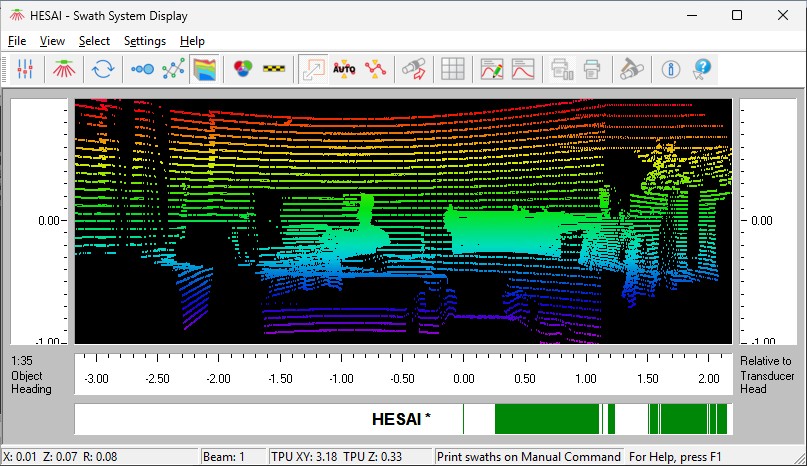
Here you can show data from multiple systems, for example your laser scanner simultaneously with a subsurface multibeam system.
It is recommended to enable the Scaled Display setting to have a preserved aspect ratio of the vertical and horizontal axes.
Bear in mind that like the Raw Multibeam Display all 3D laser data is presented in a 2D way.
3D Point Cloud Display
Use this display to visualize the calculated DTM results in a 3D environment.
DTM results are the final geo-referenced laser points fully corrected for motion and timing.
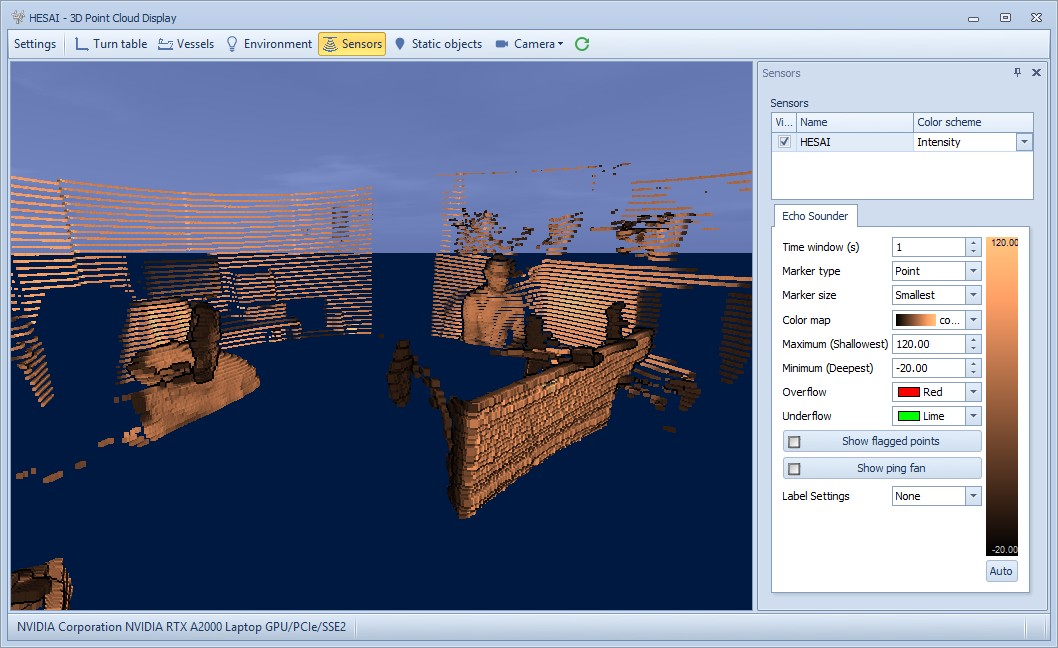
For point color coding use the Sensors settings to select your Color scheme attribute: e.g color coding on Depth (=-Height) or on Intensity (= Reflectivity) as in the example above.
Also use the Sensor settings to show or hide the ping fan.
It is highly recommend to use a small Time window (e.g. 5 - 10 seconds) for keeping all data points in the view.
When you experience performance problems it is advisable not to use this display at all, especially when recording laser data.
Therefore only use this display if you have a high-end spec video card.
During replay and offline processing there shouldn't be any restrictions for using this display.
Trouble Shooting
Click to expand...
QINSY PPS IS NOT VALID
You may see a message immediately after coming online that there is no valid PPS system:
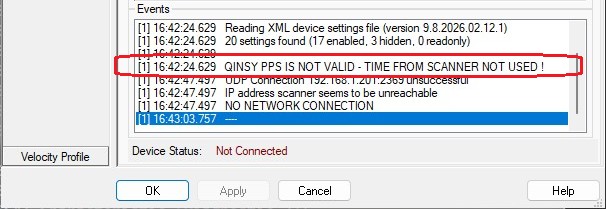
This may happen when the driver starts a bit earlier before the Time Synchronization driver receives the first valid PPS.
Under normal circumstances the driver will automatically detect when Time Synchronization is okay so you can ignore this warning at startup.
To be sure always check the Status Flag value in a Generic Display: this value should be 2 meaning accurate timing from PPS is accepted.
If you experience problems using your laser scanner in combination with this driver or if you need additional information or support then please attach the daily laser log-file when submitting your JIRA support ticket.
At the bottom of this section you'll find the information on where to find this daily laser log file
Network Problems
Windows Firewall
A commonly reported problem is that network data is blocked by the Windows Firewall.
When this happens you may see that data does come in using other utilities (like the I/O Tester or the manufacturer's own software), but that the Qinsy driver does not accept any data.
The following (Windows 10) steps may solve this:
-
Go offline, open the PC Settings (Start menu, Settings)
-
Select Windows Firewall (Privacy & security, Windows Security, Firewall & network protection)
-
Select Advanced settings
-
Select Inbound Rules, highlight all 'Driver for Laser Scanning' entries and delete them using the right mouse popup menu (or Del key)
-
If you now go online, the Windows Security Alert message will pop up: now it is important to Allow access!
Multiple Network Cards
Another possible problem could be that your computer has more than one network card installed (e.g. LAN and WIFI) but within the same sub-net mask range (255.255.255.0).
It is recommended to make the first three digits unique for each network card IP address.
You may check the daily laser log-file; it will show the IP addresses for all available network adapters and indicates which one the driver will try to use automatically:
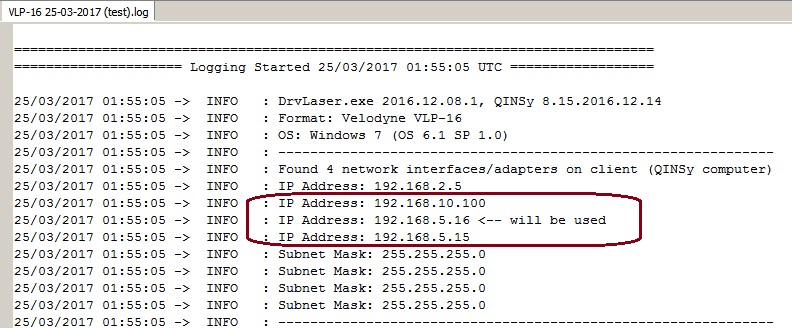
Please check that the driver is using the correct one!
Missing Data
If you occasionally experience gaps in your data, this may be caused by a general Windows setting that affects the data throughput of your network card.
Change the following registry key: HKEY_LOCAL_MACHINE\SOFTWARE\Microsoft\Windows NT\CurrentVersion\Multimedia\SystemProfile\NetworkThrottlingIndex
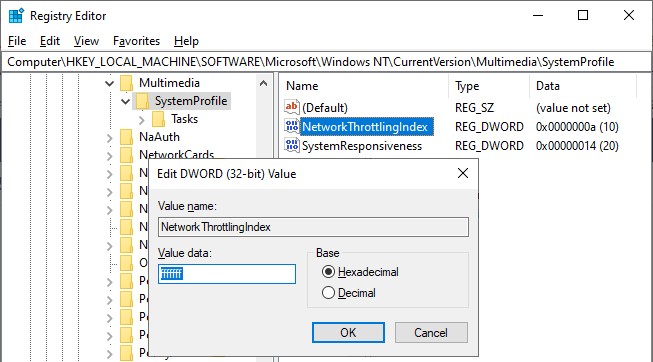
Set the new value to ffffffff (which will tell Windows to disable network throttling) and restart the computer.
Note that disabling network throttling may affect playing multimedia on your computer, but for laser scanning operations it is advisable to have a maximum data throughput of your network.
Daily Laser Log File
All user actions, system information and reported errors are logged in a daily laser log file which can be found in the current project's LogFiles subfolder.
The filename convention for this ASCII log-file is <System Name> DD-MM-YYYY.log, so every day there will be a new one.
Note that all time stamps in this log file are by default in UTC. An advanced user may change this to local time zone (LTZ) by changing the registry key:
HKEY_CURRENT_USER\Software\QPS\QINSy\8.0\Drivers\DrvLaser\Settings\TimeLogFileUtc value from 1 to 0.
Miscellaneous
Click to expand...
-
Due to the UDP broadcast characteristic of the sensor a 'ping' (or full scan) does not contain all the beams from one full horizontal rotation.
A ping in Qinsy is filled with all laser firing data received from 32 consecutive UDP packets; one UDP packet consist of 8 blocks of scan data (for all available channels: 16 or 32) so the maximum beam count per ping will be 8192 beams. So this number depends on the model being used. Note that under normal survey conditions the number of beams per ping will be much much lower. -
Each sensor comes with factory calibrated angle corrections, both elevation as azimuth. The driver will automatically retrieve these angle corrections straight from the sensor once a valid connection has been established so you don’t have to upload or import correction files. Note that you can view the used values in the daily laser log-file.
-
The decoded reflectivity is stored in Qinsy as beam Intensity and will be a value between 0 and 255 which depends on the target's surface being hit. The values may also depend whether you use Lineair or Non-Lineair Reflectivity Mapping (Web GUI setting).
The intensity attribute is ideal for color-coding the final DTM point cloud (e.g inside the Qimera, Fledermaus, the Validator or other third party programs).
Note that the Qinsy beam Quality value is 'mis-used' in order to store the real beam number (1 - 32). E.g. you may color-code on 'Quality' in the Validator for an indication of which beams have been used. -
When you disconnect from the scanner (manually or by going offline) the driver will first stop the scanner (standby mode) when it is still scanning.
However as advanced user you may change this default behavior in order to leave the scanner always running. Change the following registry key value from 01 to 00:
HKEY_CURRENT_USER\Software\QPS\QINSy\8.0\Drivers\DrvLaser_x64\XT32\<Driver Name>\Settings\AutoStandbyMode
Improve Performance
Due to the enormous amount of data to be expected while scanning and recording, it is recommended to keep the system overhead as low as possible.
Here you'll find some tips and tricks in order to fine-tune your setup.
However, these are not strict rules, because each project is different and depends on the current situation and hardware being used. Your goal should be to keep your system CPU usage as low as possible.
HARDWARE
Storage
Make use of Solid State Drive (SSD), or fast SATA hard drive (7200 - 10000 rpm).
Network
Your network card speed should never be lower than the scanner's network speed. Use a network card that can be configured for 100Mbit or 1Gbit speed. Do not use USB Networking Adapters, because this may result in loss of data when huge amounts of data are being broadcast.
Virus Scanner
Disable Virus Scanner or at least the setting 'Scan Files when Writing/Reading to/from disk'.
Task Manager CPU
General Task Manager CPU Usage should be less than 50%. CPU load of each display must be less than 10-15%.
Make sure that the 'Working Set (Memory)' column for process Multibeamer.exe and/or DrvResultOut.exe is not constantly increasing, especially during recording. For detailed information about this see the section Real-time Performance Monitoring below.
PROJECT PREPARATION
Controller Laser Device Settings
During project preparation, establish the optimum settings in order to achieve the required results.
The most benefit you will gain from setting the Min/Max Range limits, Scan Speed, Scan Rate, Scan Resolution, Angle Resolution, Vertical Area Selection, Scan Area Selection and Sector Reduction as well as possible.
Especially the Vertical or Scan Area Selection is very important. Make use of Mask schemes to define areas which you don't want to scan.
ONLINE
Raw Multibeam Display
Open only one Raw Multibeam Display and more important: do not use the options 'Show Big Dots' or 'Draw Lines'.
Navigation Display
Open only one Navigation Display.
Preferably disable DXF and TIFF layers or other big background files. Note that these layers should only be used during project preparation.
When 'object tracking' is enabled, do not zoom in too close. Keep in mind that the display should not be 'refreshed' more than 1x per second.
3D Point Cloud Display
It is not recommended to use a 3D Point Cloud Display, unless your hardware contains a high-spec video card.
Under Sensor settings set the Time window setting to a short period, e.g. 10 sec
Static Grid / Dynamic Grid
Storage to a grid is not recommended and should be purely for display purposes: e.g. for checking the scan coverage or for showing the 95% Confidence Level statistics.
If you do want to see the scan coverage then it is advisable to store to a sounding grid and not to the dynamic surface
Do not use a small cell-size; preferably not less than 1.0 meter.
If you notice in the Navigation Display that the real-time sounding grid is updated with a delay then please increase the cell-size or disable the storage completely.
Note that in Replay (offline) there are no limitations and you may use small cell-sizes, e.g. 0.10 meter.
OFFLINE
Replay
In Replay there are no limitations as mentioned above: use as many displays as you like, store to sounding grids with small cell-sizes, update the dynamic surface, etc.
All this may only affect the replay speed, but the data integrity of your final DTM processing files should be fine.
COMPUTATION SETUP
While working online, disabling the laser system in your Computation Setup will have the most effect on the performance
The final footprints will not be geo-referenced, nor corrected for motion, heading or timing in real-time, which will save a tremendous amount of CPU power and memory usage.
This tip allows you to get the most out of your scanner: maximum scanning speed and maximum scanning rate, without the risk of losing scans due to performance issues.
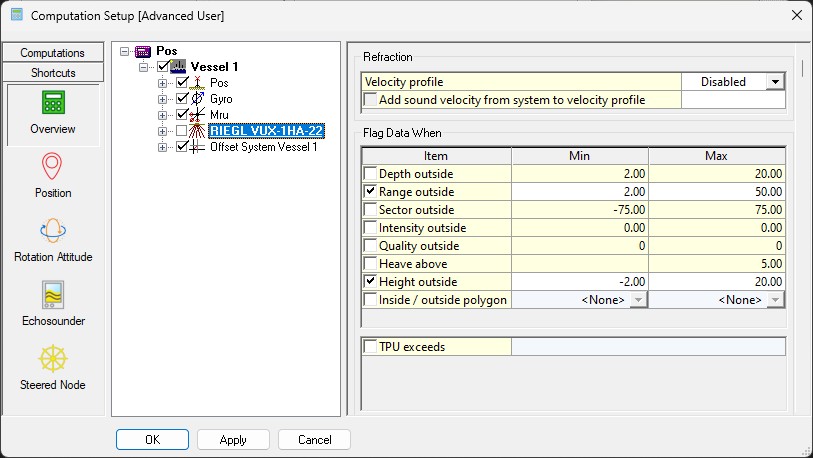
Drawback is that no DTM file (e.g. QPD) is created, nor a grid is filled, while working online.
In order to create a final DTM and/or Grid file you just need to Replay the recorded databases afterwards or load the recorded databases straight into Qimera for further processing.
Real-time Performance Monitoring
When the scan data rate is too high, the other core Qinsy processes may not be able to handle the amount of data published by the driver (too many pixels/sec.) and in the past it would eventually crash the system.
An extra safety check has been implemented in order to prevent crashing of Qinsy: abnormal memory usage will be detected and when it exceeds a certain threshold limit a Stop command will be sent automatically to the scanner.
When that happens, the following message is displayed in the Events list in order to inform the user:
"SCANNING ABORTED"
"PROCESS MULTIBEAMER.EXE EXCEEDED CRITICAL MEMORY 1.7GB"
Whether such an event may occur is very much hardware dependent and/or on which settings are used.
You can check yourself if your setup is vulnerable: open the Windows Task Manager and monitor process Multibeamer.exe and/or DrvResultOut.exe while scanning. Under normal conditions the memory used by these processes should be constant.
If you notice that column Working Set (Memory) is constantly increasing, then the process will eventually crash when it exceeds 2GB and you will have to restart Qinsy. Note that 2GB is the maximum memory allowed for a 32bit process.
There may be situations that the default 1.7GB threshold is a little too low, or that the Stop scanning command must be sent earlier, e.g after exceeding a memory usage of 1GB.
So as an advanced user you may modify the following registry key in order to increase this threshold:
HKEY_CURRENT_USER\Software\QPS\QINSy\8.0\Drivers\DrvLaser\Settings\ProcessMemoryLimit
Note:
-
If you enter a value (in bytes) higher than 2GB it won't be accepted and the default will be used. You may try the following key value: 2000000000
-
If the value is set to zero, no monitoring of the Multibeamer.exe or DrvResultOut.exe process memory usage will be done. This is at your own risk because it may cause a crash when the memory usage exceeds 2GB.
But most important
Try to prevent having such events happening in your setup:
-
Check all your hardware and upgrade where possible. (Especially CPU power, Memory installed, Network card, Hard disk storage, etc.)
-
Read carefully the Improve Performance paragraph and try to follow up all the tips.