Set up Geodetics in a new project
On this page:
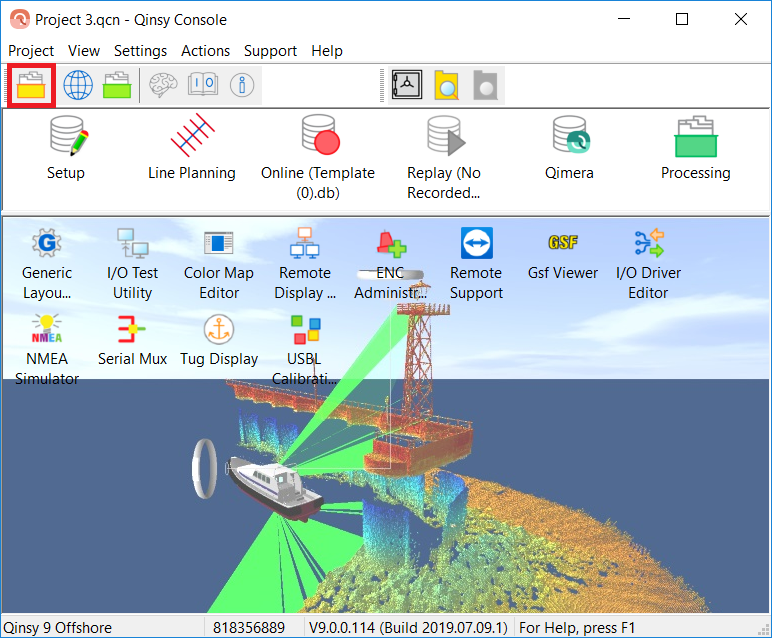
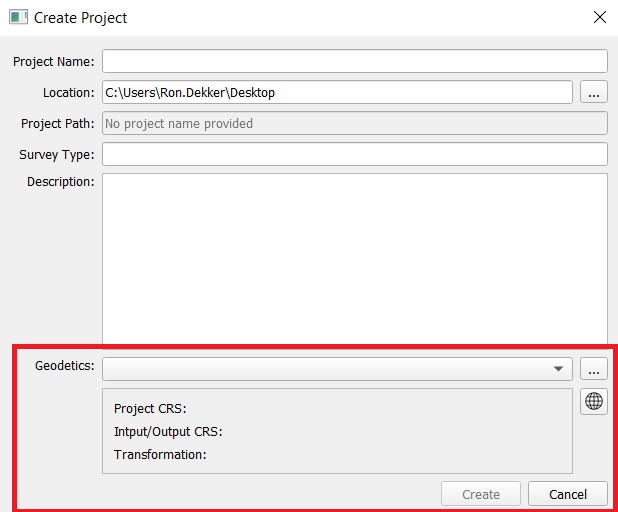
Go to Project Explorer and create a new project
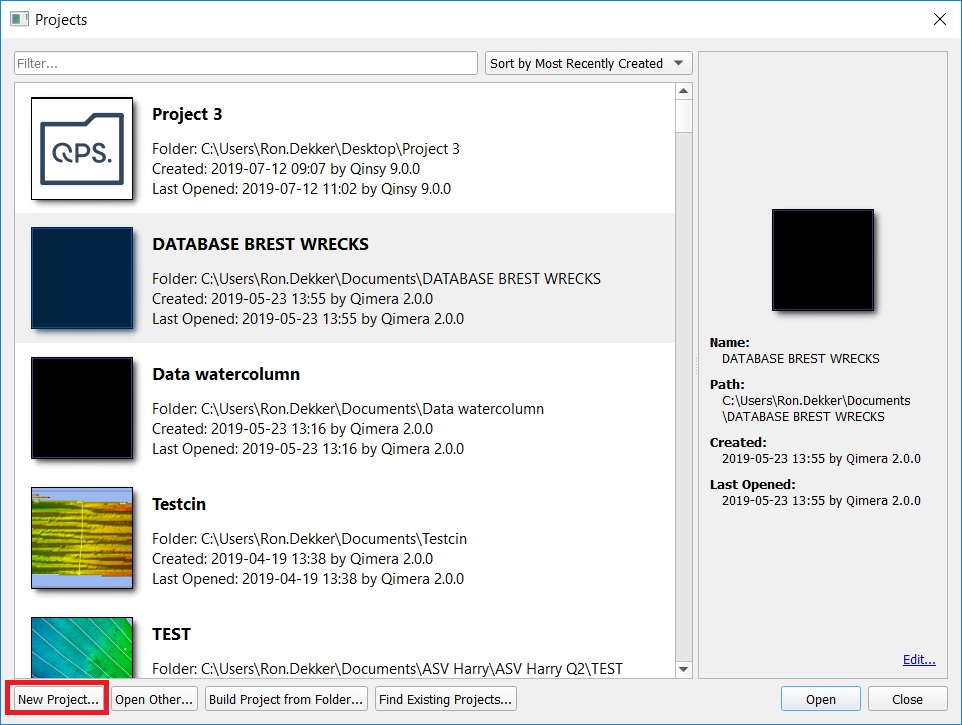
From this point on there are three ways to set up a new project:
-
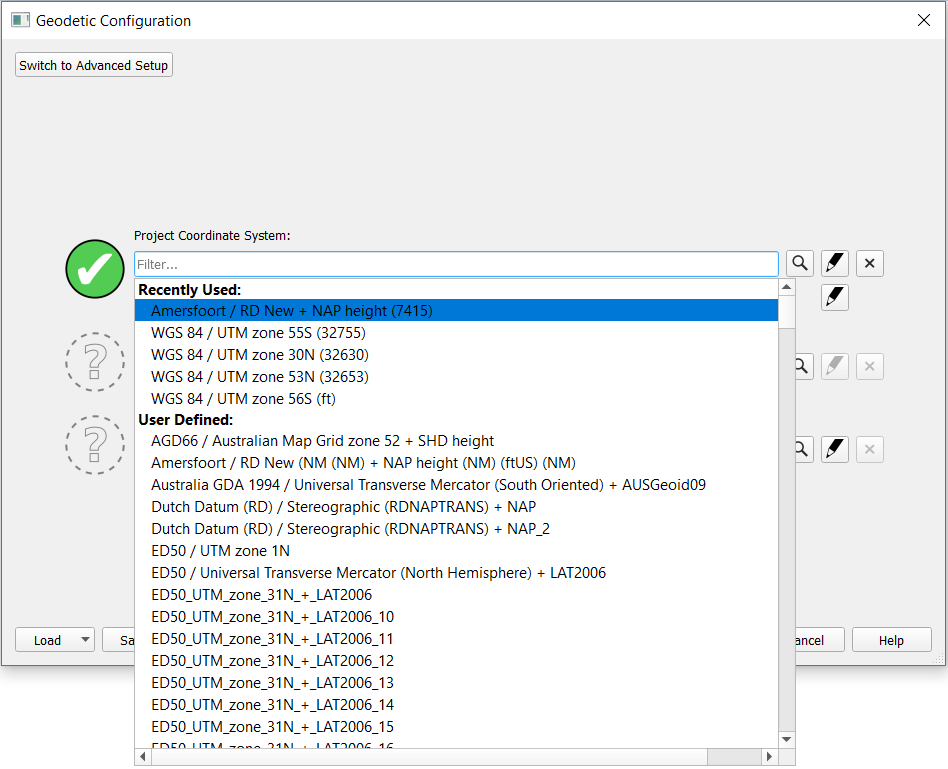
Select a predefined setup (click on the drop down bar)
-
Select an existing WKT setup or an existing database (click on the 3 small dots)
-
Set up your CRS from scratch (click on the small globe)
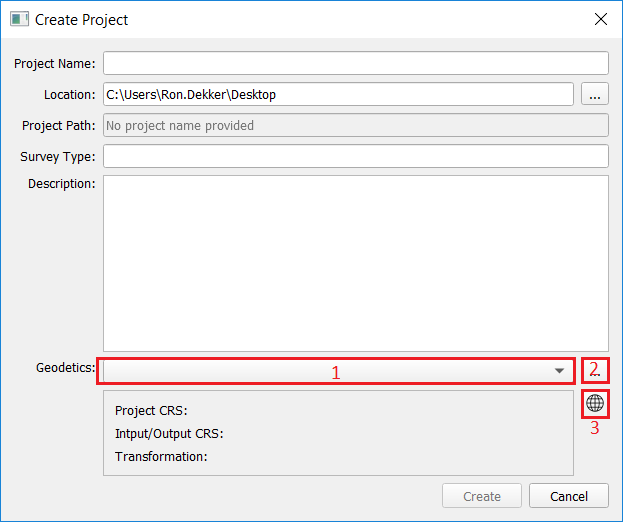
1. Predefined Setup
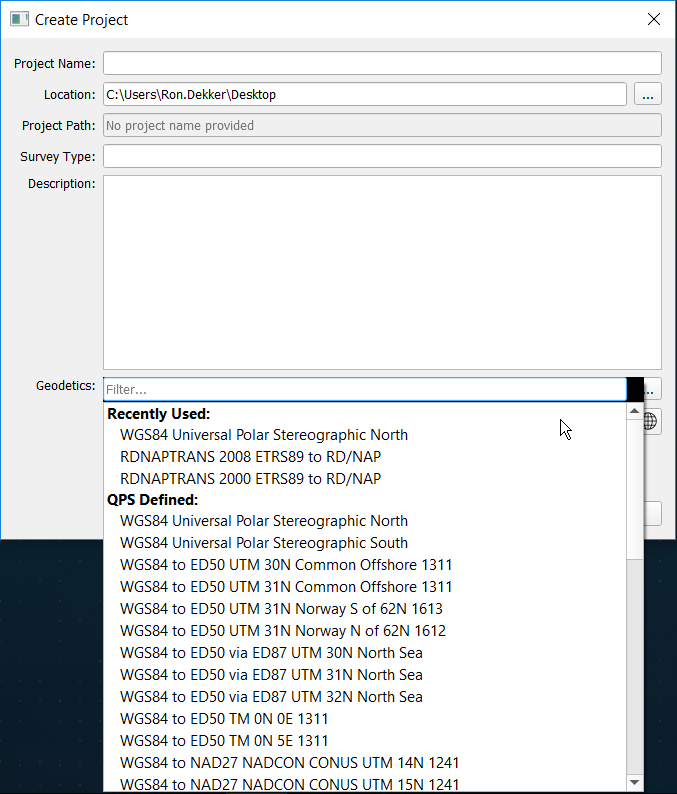
For a predefined setup click on the drop down menu.
Here you will find:
-
Recently Used geodetic setups if you have done it before and/or saved a custom created one
-
QPS Defined, which are the Qinsy predefined datums
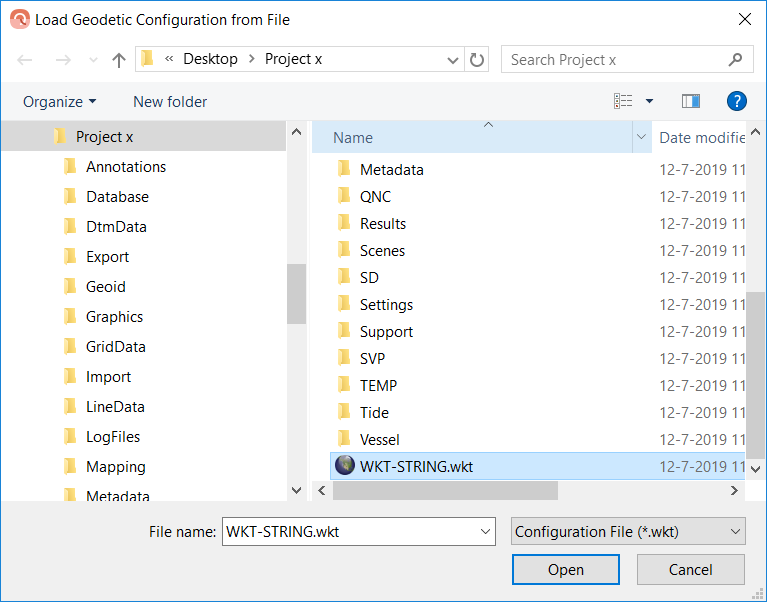
2. WKT File or Database
If you have a WKT file (can be saved via the SETUP CRS option below), or
If you have a Qinsy database with a geodetic configuration.
-
You are able to select the file which will populate the Datum for this project
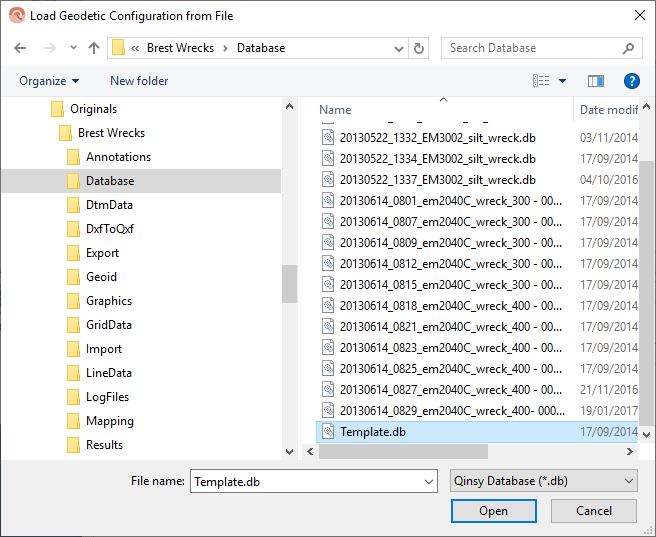
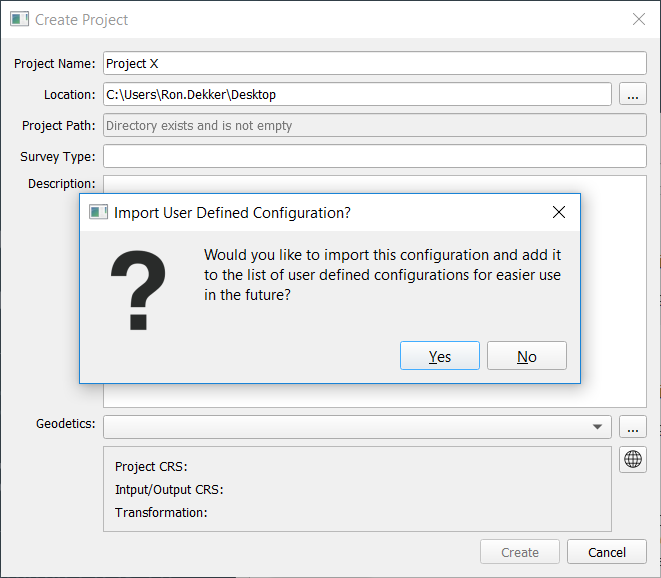
3. Set up CRS
For a CRS setup from scratch you now have to set up the Project CRS:
-
The project CRS is the Target datum.
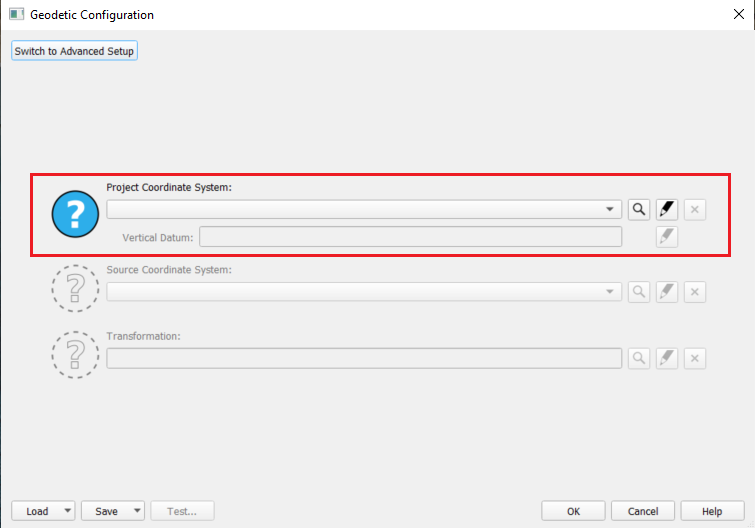
-
This can either be set up by loading a complete predefined datum transformation,
-
Or by loading a WKT file.
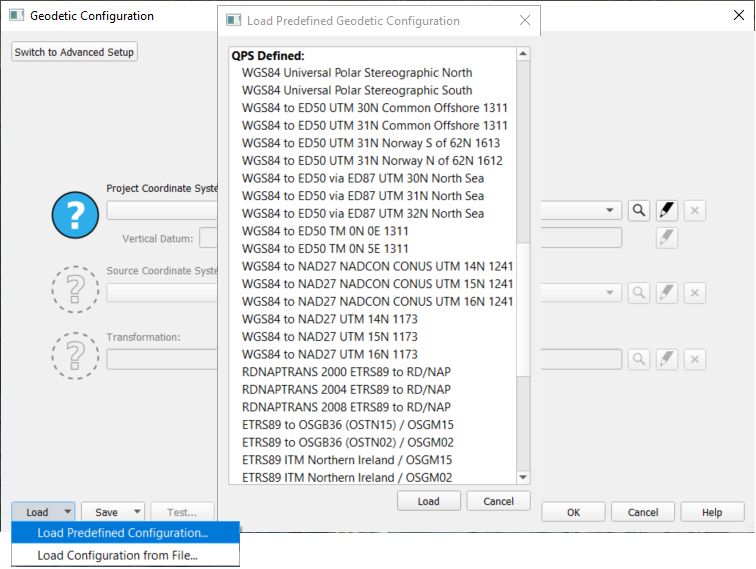
-
You can load a specific existing ellipsoidal datum (e.g. WGS84, ETRS89, different local datum, etc.)
-
In the case you still want to do a datum transformation you have to do it manually, please keep reading.
-
-
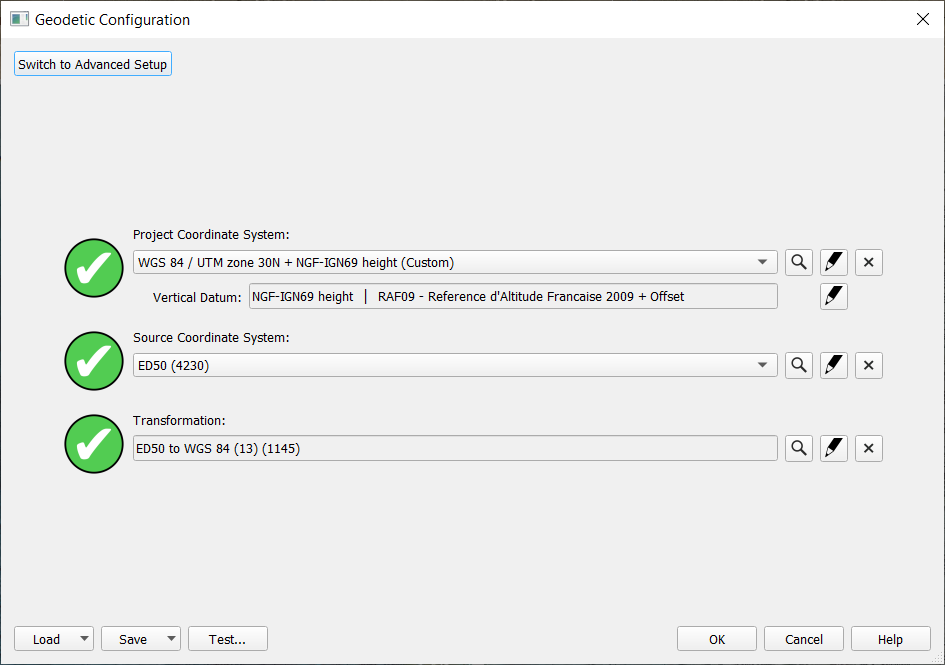
If set up correctly you will see a green check mark.
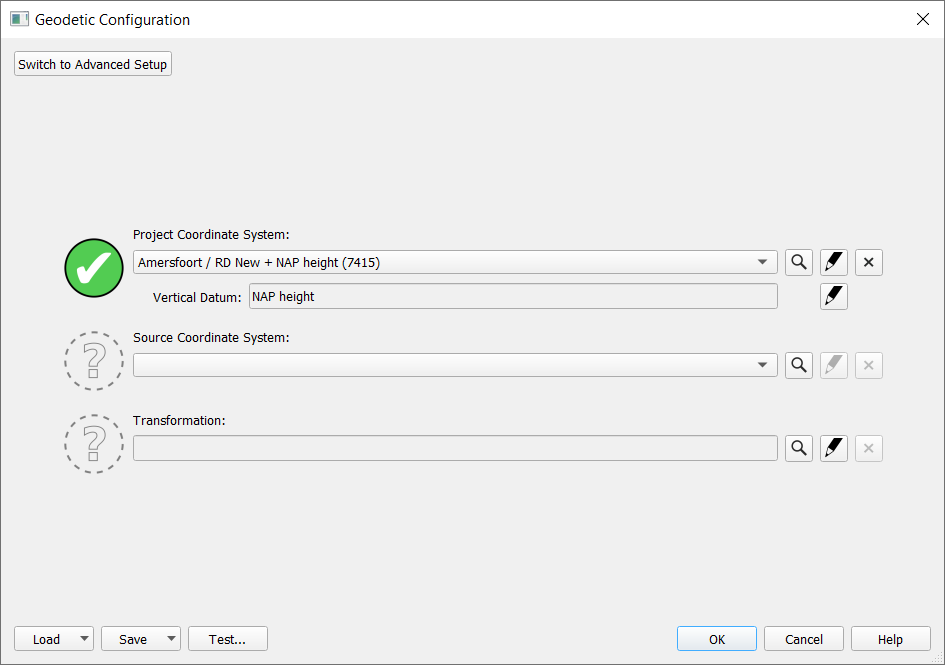
-
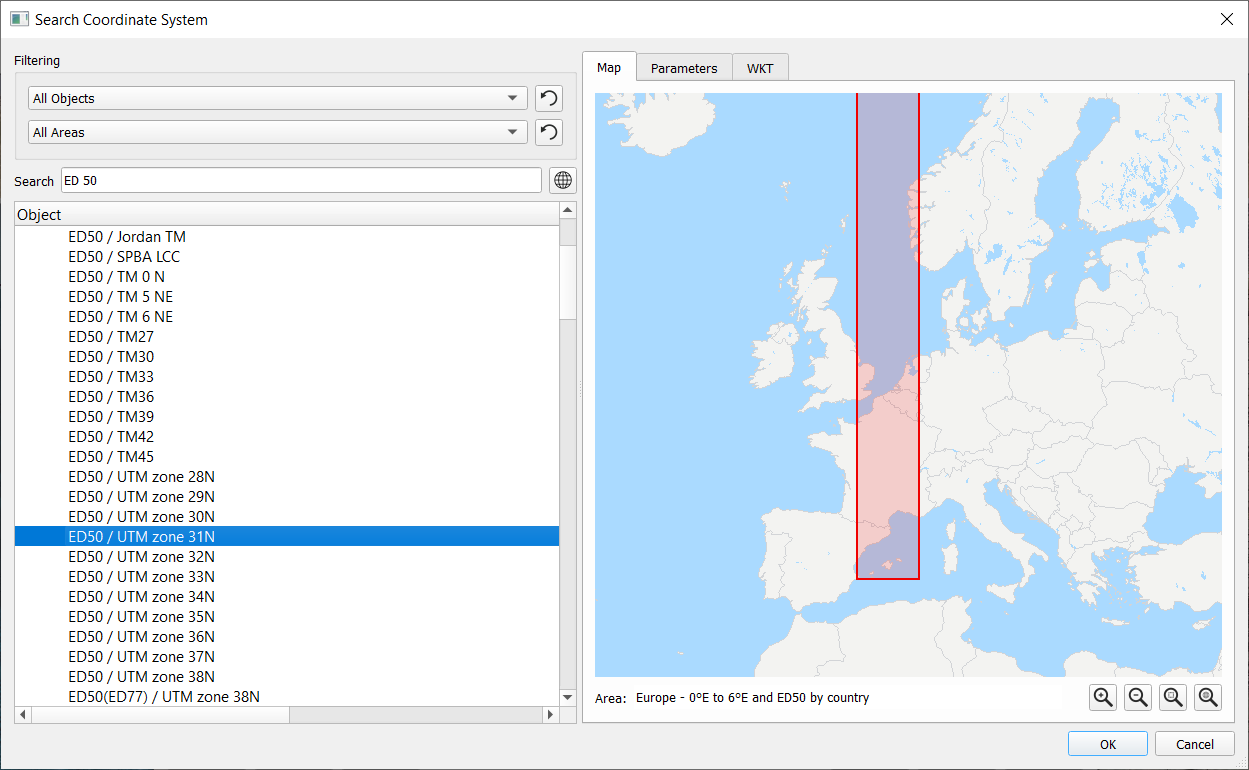
Set up Target datum by using the magnifying glass.
-
If set up correctly you will see a green check mark.
-
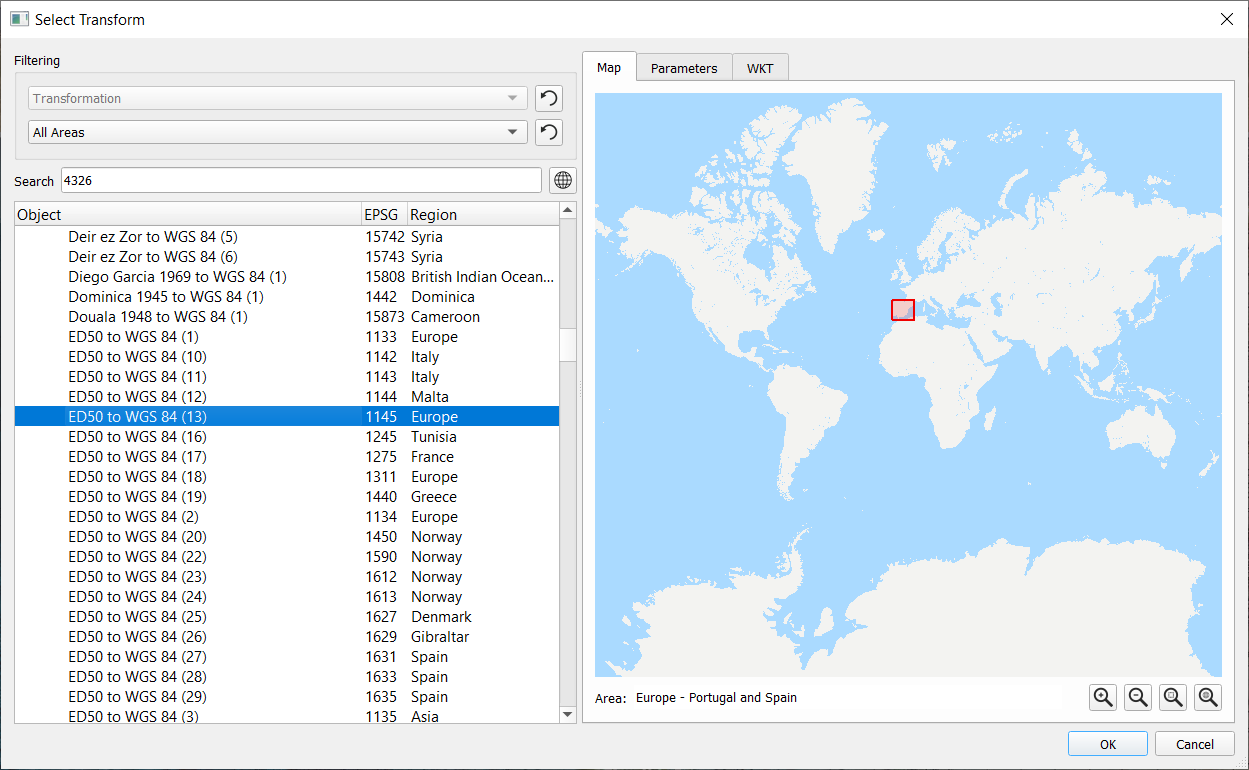
The red area shows the area where this Coordinate System is valid for;
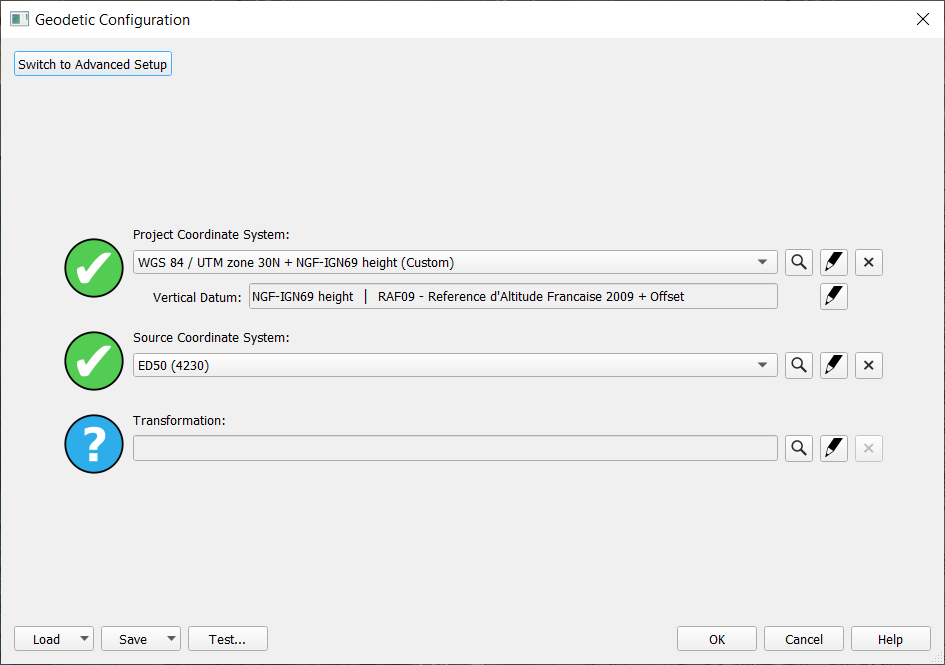
If you still want to set up the datum transformation, you can do it in two ways (click on the play button):
Select Input geographics first, once target datum is selected:
-
Set up Source Datum
-
Set up correct Transformation
-
If set up correctly you will see a green check mark
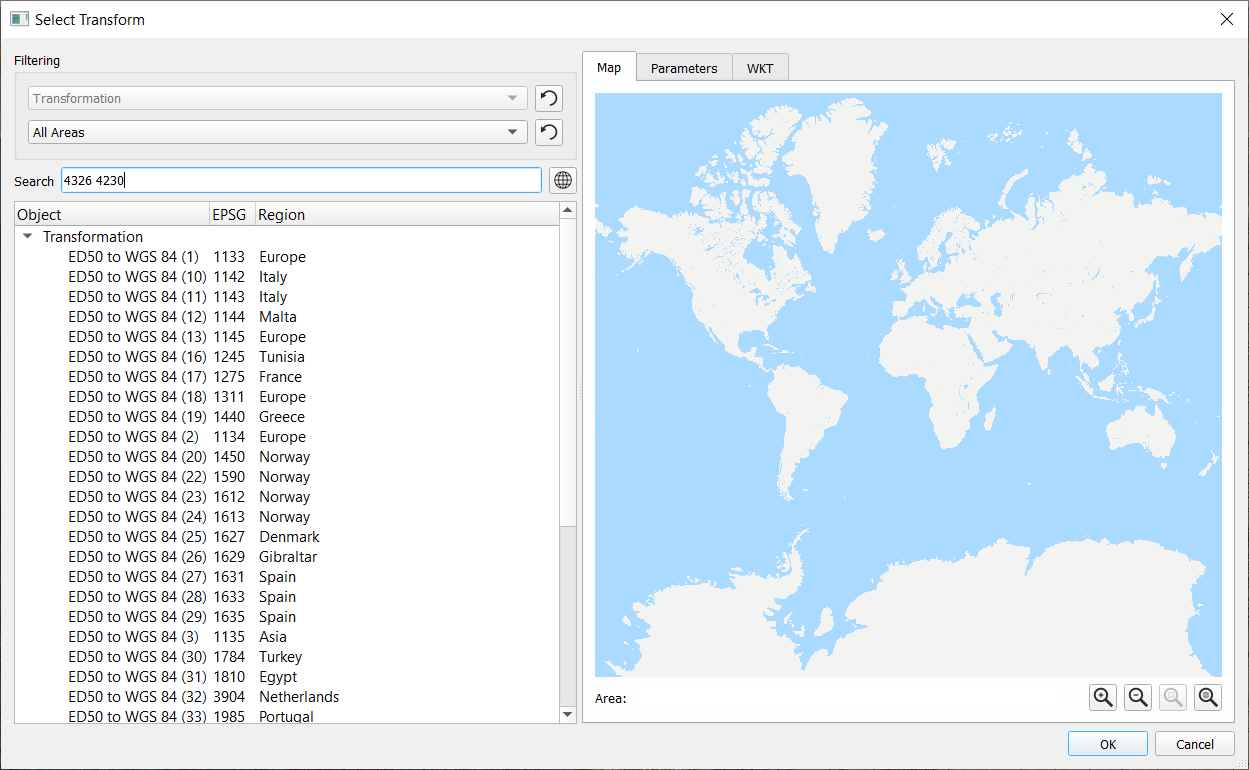
Select transformation first:
-
A list with existing related transformations is available
-
Once selected the Source datum will be auto-populated
-
If set up correctly you will see a green check mark