
The Sound Speed Manager is software to bridge the gap from ocean sampling equipment to Qinsy.
It has been developed by HydrOffice, NH, USA - see the following paragraph:
"HydrOffice is a research development environment for ocean mapping.
Its aim is to provide a collection of hydro-packages to deal with specific issues in such a field, speeding up both algorithms testing and research-2-operation.
This package provides functionalities to manage sound speed profiles.
The package is jointly developed by NOAA OCS and UNH CCOM.
HydrOffice's Sound Speed Manager from CCOM/UNH and NOAA is freely available.
(https://www.hydroffice.org/soundspeed/main)"
The how-to description below was copied from their manual.
Qinsy accepts the same SVP transmission protocol as SIS (Kongsberg), but a method to verify reception of the cast is not currently known thus the user should confirm reception in the acquisition system.
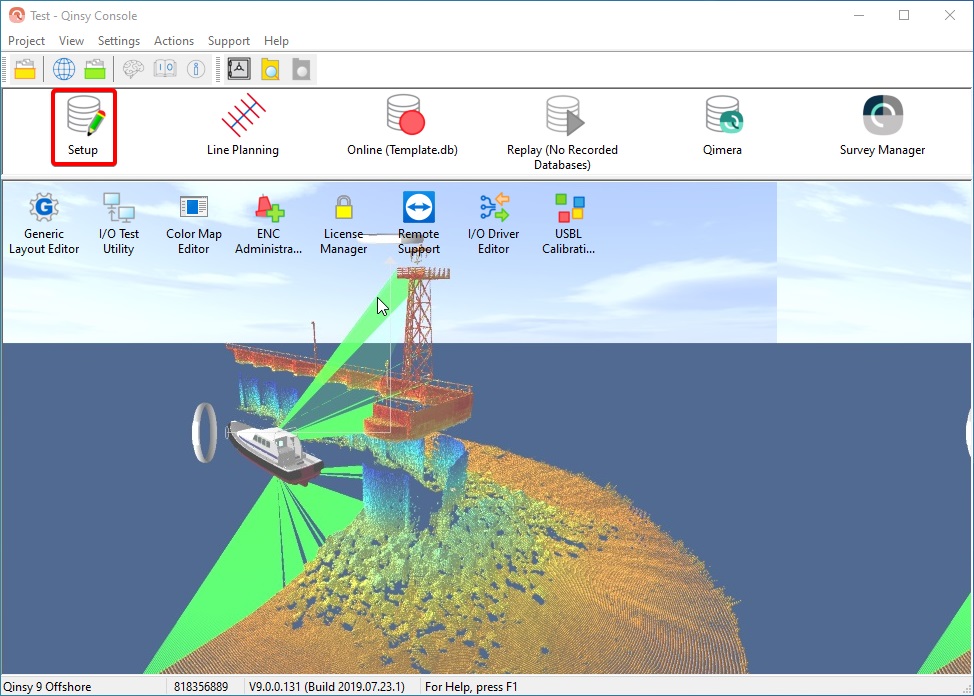
After loading your project, select Setup from the Qinsy Console.
Refer to Qinsy documentation for information regarding setting up a project.
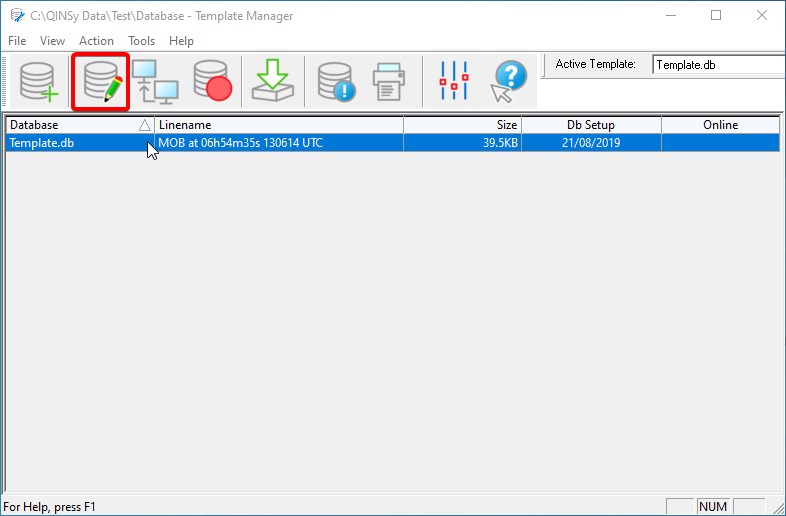
Open your project database.
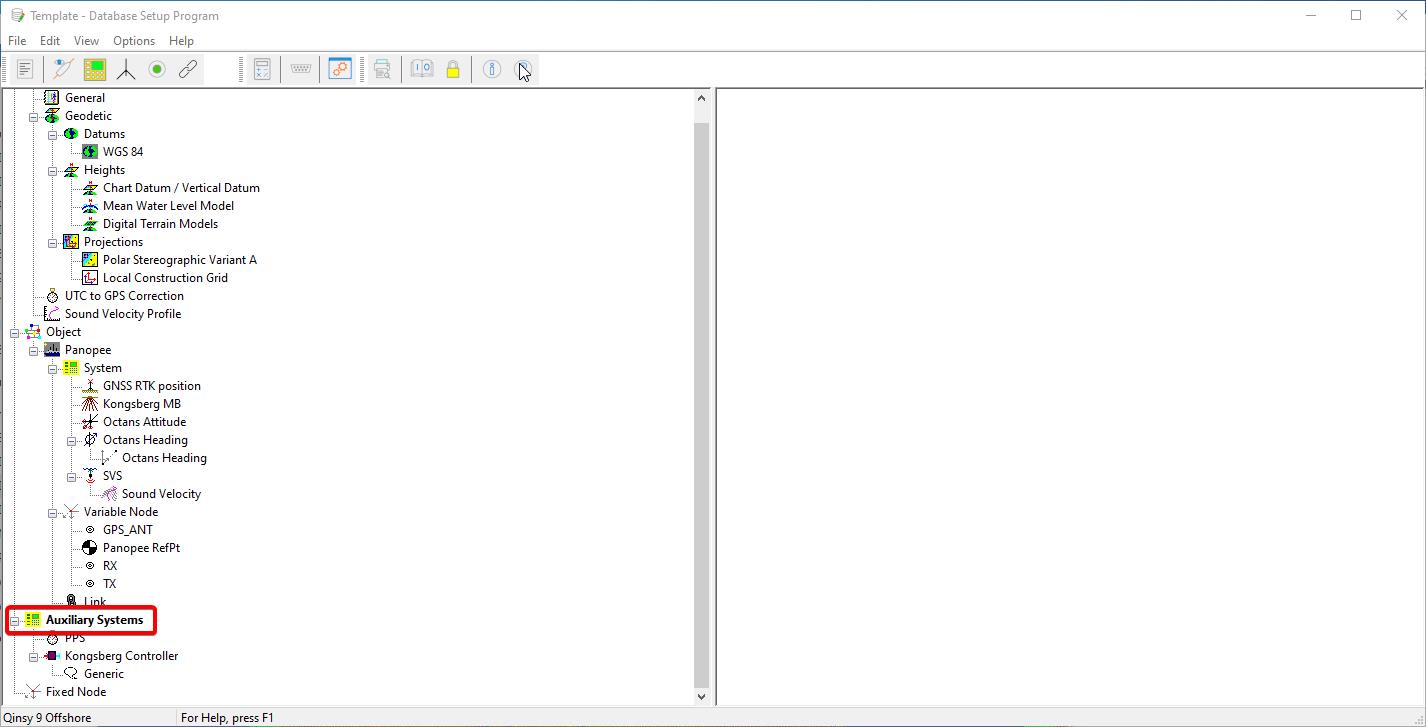
Right click the Auxiliary Systems icon and select New System.
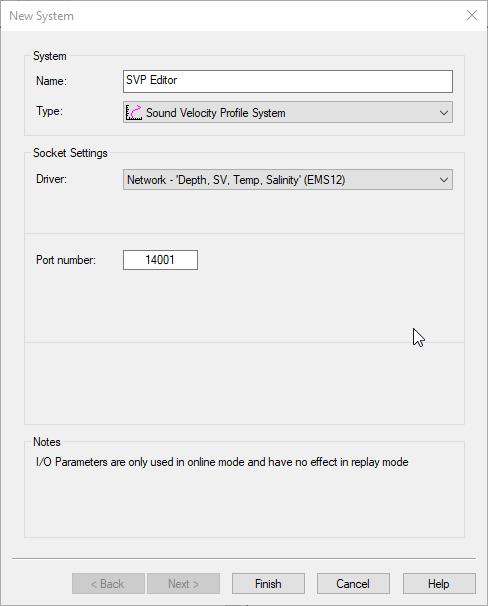
Configure the new system as shown above.
Choose the same port number that the SSP package will be sending casts to (this is configured in the __config__.db file).
Return to the Console and press the Online button.
The Controller will now be started.
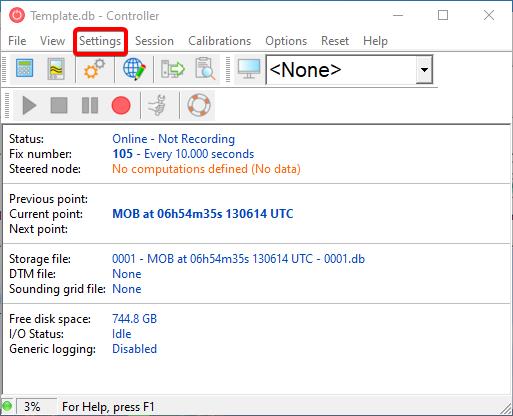
Choose Echosounder Settings from the Settings menu.
This will allow you to configure the behavior of Qinsy when it receives new sound speed profiles from SSP package.
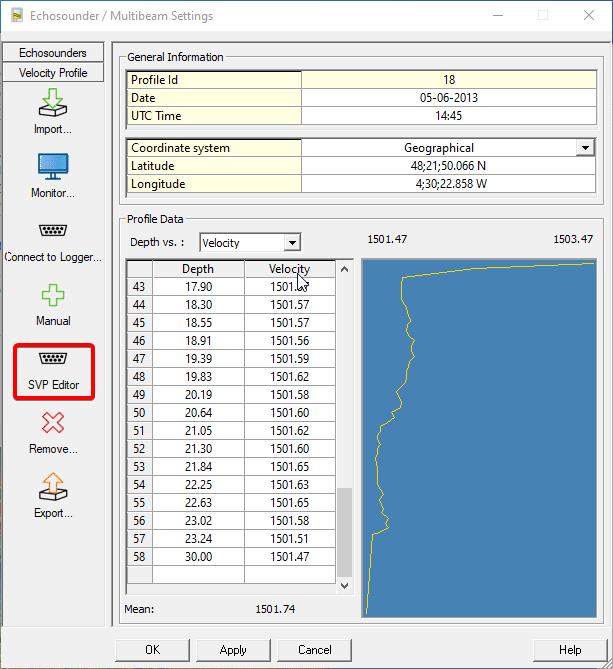
Left click the icon for the SVP Editor device.
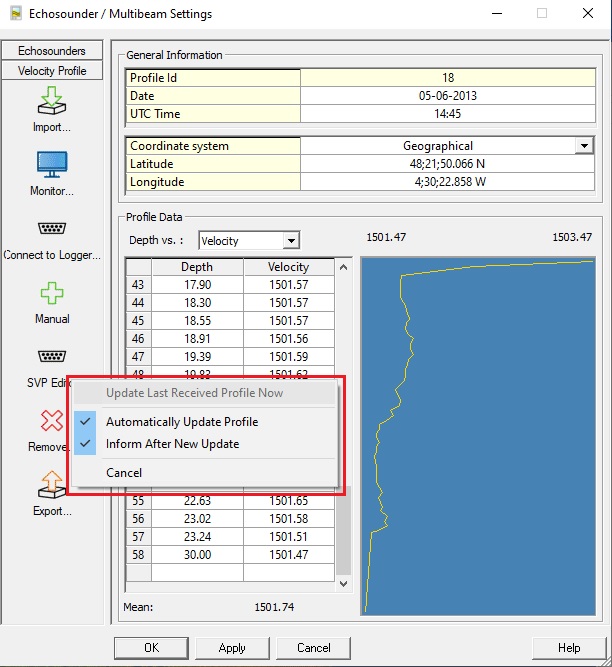
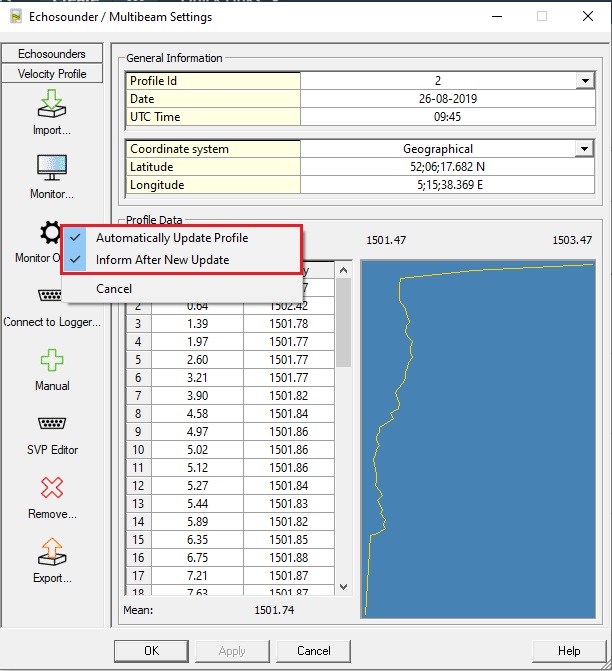
Choose appropriate options to control Qinsy’s behavior when it receives casts from the SSP package.
For initial testing purposes, you should at least choose to be informed after a new update.
Under the function Monitor it is possible to monitor a folder, when a sound velocity file is moved/ copied in to this folder, the file can be imported in the profile.
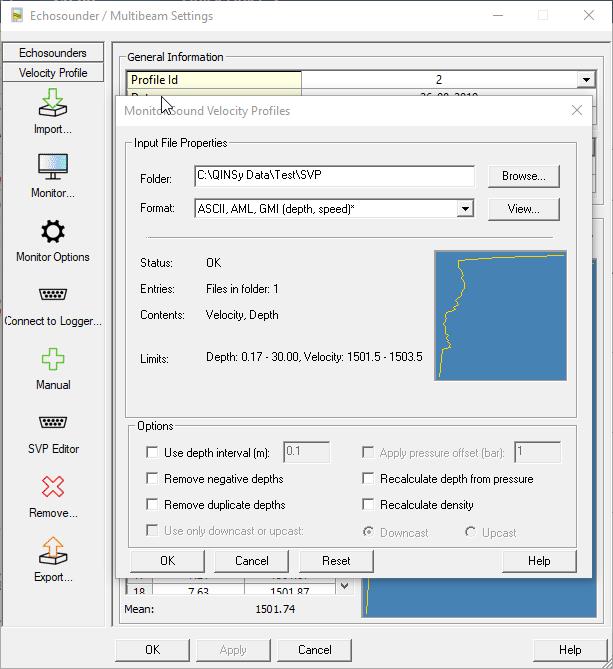
Under monitor options it is possible to select if the new file should automatically update the profile, and to inform when there is a new update.
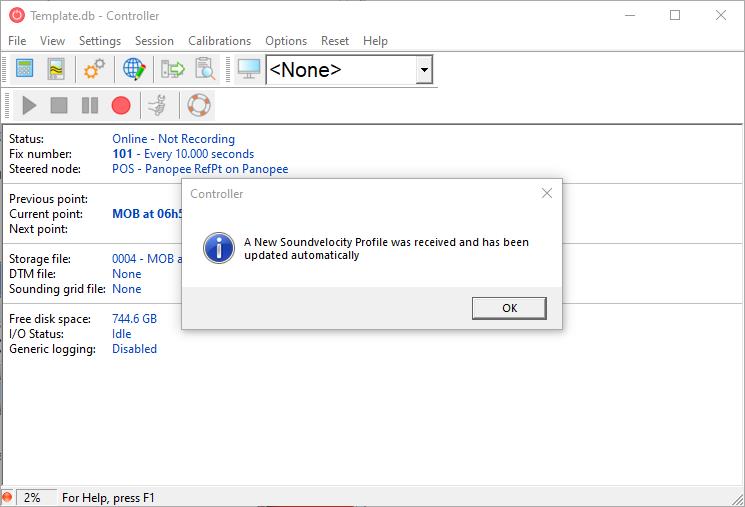
With Qinsy is “Online”, send a test profile from the SSP package.
If you have chosen to be informed upon reception of a new cast, a message window will appear for acknowledgement.
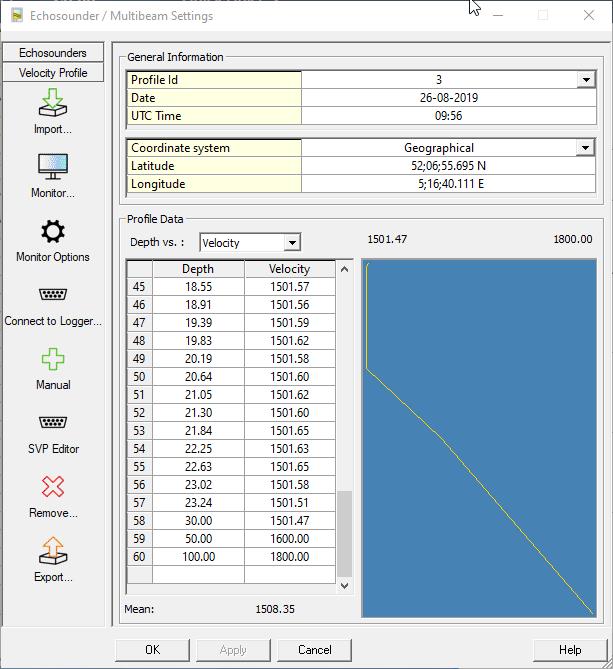
By choosing Echosounder Settings from the Settings menu again, you can verify that the cast was received.